
What Makes a Windows Screen Capture Tool Truly Free in 2026?
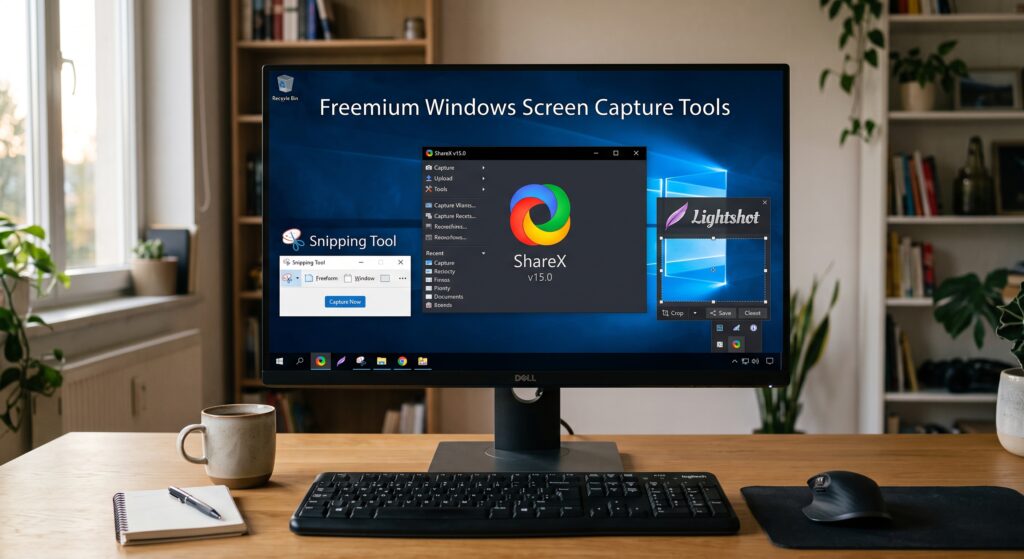
Built-In, Open-Source, and Freemium Windows Screen Capture Tools: Key Differences
A free Windows screen capture tool usually follows one of three models: built-in, open-source, or freemium. The difference affects not only capture features, but also setup, storage, customization, support, and possible usage limits.
Windows screen capture tools can be designed for quick screenshots, advanced annotations, screen recording, system audio, webcam capture, video editing, automation, or cloud sharing. The best choice depends on which capabilities are required and what restrictions apply to the free version.
Built-In Microsoft Screen Capture Tools
Built-in tools are provided and maintained within the Windows ecosystem. Snipping Tool, for example, captures screenshots with Windows + Shift + S and records a selected area with Windows + Shift + R.
A built-in Microsoft screen capture tool offers:
- minimal setup;
- native Windows shortcuts;
- local saving and clipboard support;
- updates distributed through Microsoft.
This option is usually sufficient for occasional screenshots or short recordings. However, a basicWindows screen Snipping Toolmay not support workflows that require organized project folders, cloud links, shared workspaces, or advanced automation.
Open-Source Windows Screen Capture Software
Open-source tools make their source code available under a defined licence. Their features, usability, support, and privacy still depend on the individual product.
ShareX is a free and open-source Windows screenshot capture tool that supports screenshots, screen recording, file sharing, custom upload destinations, and automated actions. OBS Studio is another open-source option focused on advanced video recording and streaming.
Open-source tools are commonly chosen for:
- detailed capture and recording settings;
- local control over files;
- custom shortcuts and automation;
- flexible storage destinations;
- fewer subscription-based restrictions.
The trade-off is complexity. Configuration, integrations, updates, and troubleshooting may require more technical knowledge. Managed cloud storage and team collaboration are not necessarily included.
Freemium and Dedicated Screen Capture Apps
Freemium apps provide a usable free version while reserving certain capabilities or higher usage levels for paid plans. Depending on the provider, limits may apply to cloud storage, recording duration, export quality, file history, collaboration, or advanced editing.
These restrictions must be checked separately for every Windows screen capture app because there is no standard freemium feature set.
PixelTaken is an example of a dedicated capture app that extends the workflow beyond creating an isolated file. Users can save captures locally or upload screenshots and videos to the cloud. Uploaded content can be organized into galleries, folders, and workspaces, shared through links, or kept unavailable to other users through link-access controls.
This type of app is useful when screenshots and recordings must be organized and shared regularly rather than stored as unrelated files across the computer.
Key Differences
| Tool model | Main advantage | Common trade-off |
| Built-in | Fast access and Windows integration | Limited organization and collaboration |
| Open-source | Customization and local control | More setup and self-management |
| Freemium or dedicated app | Integrated storage and sharing workflows | Possible product-specific limits |
Best Free Windows Screen Capture Tool for Images and Annotations in 2026
All four tools compared here support basic screenshot markup. The more important differences are whether annotations remain editable, how users can conceal arbitrary sensitive areas, what happens after editing, and how much configuration the workflow requires.
PixelTaken: Balanced Annotation and Sharing Workflow
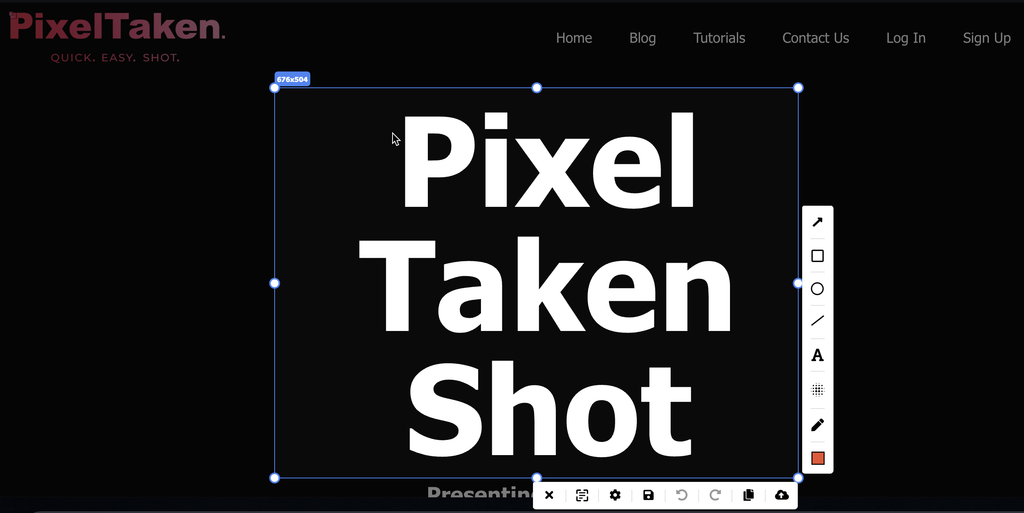
PixelTaken combines screenshot capture, annotation, privacy tools, and cloud sharing in one workflow. Users can add shapes, lines, arrows, and text, change colors and line width, reposition added elements, and undo recent actions.
PixelTaken also includes OCR (Optical Character Recognition) for recognizing text in screenshots. This adds another way to work with captured content when users need to identify text directly from an image instead of processing the screenshot only as a visual file.
Its dedicated blur tool can conceal any selected part of a screenshot, including text, images, account details, or irrelevant interface areas. The finished capture can then be saved locally or uploaded directly to the cloud.
Unlike Snipping Tool, which provides text-based redaction rather than a general blur tool, PixelTaken allows users to obscure an arbitrary area without opening another editor. It also includes direct cloud upload within the capture workflow. This combination of annotations, OCR, privacy tools, and sharing is useful for bug reports, visual instructions, client feedback, and internal documentation that must be processed and shared quickly.
Compared with ShareX, PixelTaken follows a more focused workflow with fewer automation settings to configure. It is currently available as a free Windows screen capture app through the Microsoft Store.
ShareX: Advanced Editing and Automated Actions
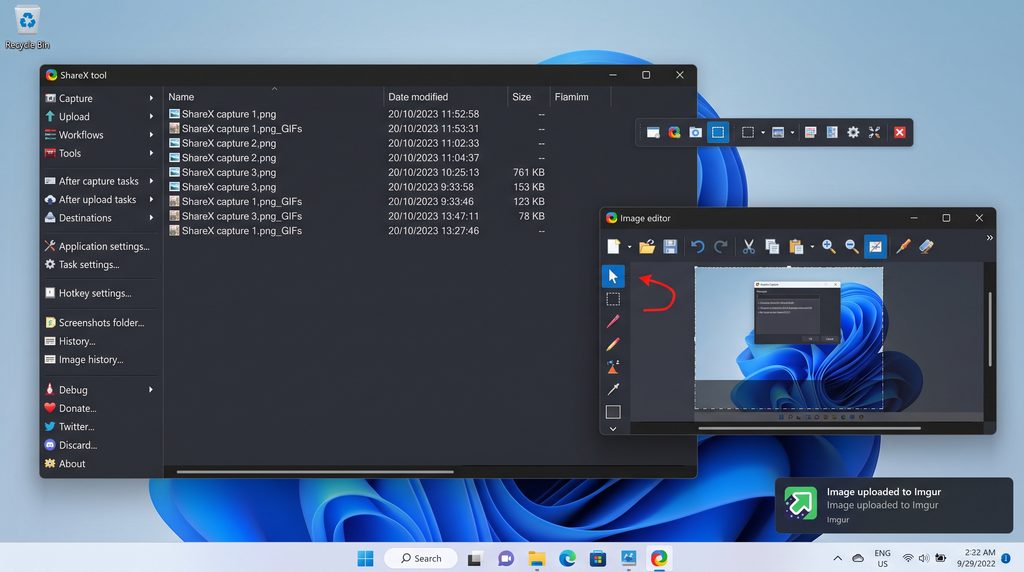
ShareX provides the broadest documented annotation and automation toolkit among the tools compared here. Its editor includes arrows, rectangles, text, speech balloons, numbered steps, highlighting, blur, pixelation, smart erasing, cropping, and image cut-out tools.
Annotations remain editable until the image is finalized. Users can move, resize, recolor, duplicate, delete, or reorder existing elements. After editing, ShareX can copy or save the image, upload it to a configured destination, pin it to the screen, or continue with other after-capture tasks.
ShareX can also save captures locally without requiring an upload destination. Its detailed task settings, custom uploaders, and automation options make this Windows screenshot capture tool well suited to technical documentation and repeatable capture workflows. However, this flexibility requires more initial configuration than PixelTaken or Snipping Tool.
Snipping Tool: Native Quick Markup
Microsoft’s Snipping Tool includes pens, highlighting, shapes, emojis, cropping, erasing, undo, and redo. Text Actions use on-device OCR to extract and copy text from a screenshot.
Quick Redact can automatically conceal detected email addresses and phone numbers. Microsoft states that the text-recognition process runs locally on the device. Because this feature targets recognized text, it does not replace a general blur or pixelation tool for hiding arbitrary images, interface areas, names, or other visual information.
As a built-in Microsoft screen capture tool, Snipping Tool can save a capture, copy it to the clipboard, or send it through the Windows Share menu. This Windows screen snipping tool is convenient for quick annotations, but it does not provide the configurable automation of ShareX or the integrated blur and cloud-upload workflow available in PixelTaken.
Greenshot: Lightweight Local Documentation
Greenshot supports selected-region, window, and full-screen capture. Its image editor provides shapes, annotations, highlighting, cropping, and an obfuscation tool with both blur and pixelation options. Existing elements can be moved or resized before the image is finalized.
The completed screenshot can be saved as a local file, copied to the clipboard, printed, or attached to an email. Greenshot also allows users to save groups of annotation objects and reuse them in other screenshots, which can be helpful when preparing consistent technical documentation.
This lightweight Windows screen capture software is centered primarily on desktop editing and export. It does not provide the integrated gallery, folders, workspaces, and cloud-link workflow available in PixelTaken, while its automation controls are less extensive than those offered by ShareX.
Which Tool Fits Each Screenshot Workflow?
Based on annotation control, privacy tools, workflow complexity, and sharing options:
- PixelTaken offers the most balanced workflow for editable annotations, arbitrary-area blur, local saving, and direct cloud upload.
- ShareX is the strongest choice for advanced editing and automated after-capture actions.
- Snipping Tool provides the fastest native Windows option for basic markup and text redaction.
- Greenshot is suited to lightweight, locally managed screenshot documentation.
For users who need to move from capture to annotation and sharing without configuring a complex automation system, PixelTaken is the most balanced free Windows screen capture tool in this comparison.
Windows Screen Capture Tool for Video, Audio, and Webcam: Free Recorders Compared
Free Windows screen recorder tools differ mainly in the sources they can combine. The key criteria are the available capture modes, system audio and microphone controls, webcam support, recording settings, and the workflow after the video is created.
PixelTaken: Recording and Sharing in One Workflow
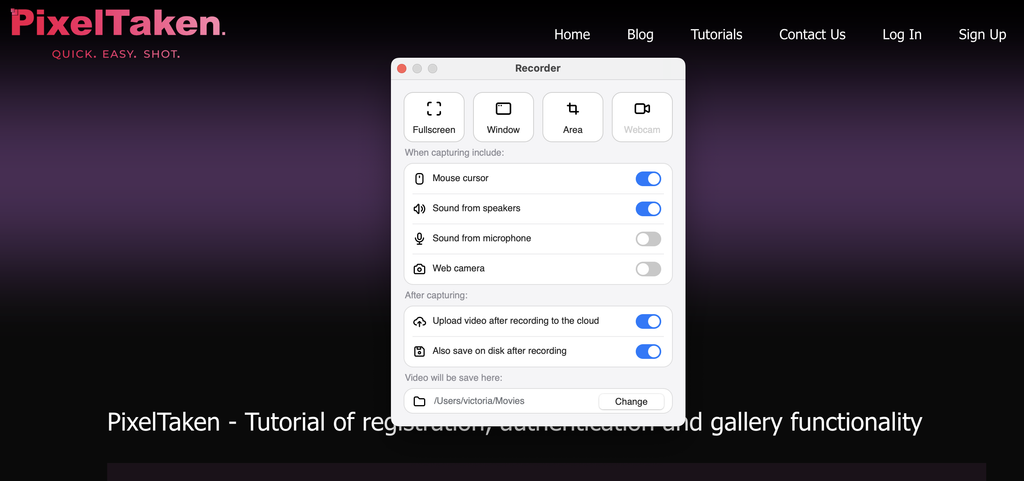
PixelTaken can record the full screen, a separate monitor, a specific window, or a selected area. Depending on the recording setup, users can include the cursor, system sound, microphone, or webcam.
Its settings also provide control over the audio and video inputs, recording quality, codec, save location, and post-recording behavior. A video can be stored locally, uploaded to the cloud, or uploaded while retaining a local copy.
This makes PixelTaken suitable for:
- short product walkthroughs;
- bug reports and issue reproduction;
- tutorials with voice narration;
- webcam-supported presentations;
- asynchronous updates shared through a link.
PixelTaken keeps this workflow relatively direct: users select the required capture area and input sources, record the video, and then save or upload it. It is a practical Windows screen recorder tool when recording and sharing need to happen in the same application.
OBS Studio: Advanced Recording Control
OBS Studio is free, open-source Windows screen capture software for video recording and live streaming. It supports display capture, individual windows, games, webcams, capture cards, images, browser sources, and text. These sources can be combined and arranged within reusable scenes.
OBS also supports desktop audio, application audio, and microphone sources. Users can control them separately through the audio mixer and split selected sources into multiple tracks for editing after recording.
This level of control is useful for:
- screen-and-camera layouts;
- separate microphone and system-audio tracks;
- multiple scenes and recording sources;
- detailed resolution, frame-rate, and encoding settings;
- longer tutorials, courses, gameplay, and production workflows.
The trade-off is setup. Users need to create scenes, add sources, configure audio routing, and test the output before recording. OBS provides the most detailed recording control in this comparison, but it may be excessive for a short video that only needs to be captured and shared.
Microsoft Clipchamp: Recording and Editing in One Project
Clipchamp can record the screen, webcam, or both simultaneously. Screen and camera recordings are added as separate elements on the editing timeline, allowing users to resize, reposition, trim, or edit them independently.
This makes Clipchamp useful for narrated browser demonstrations, presentations, webcam videos, and recordings that require basic editing before export.
Clipchamp’s free version also includes recording, audio, and export conditions that are examined in the next section.
Xbox Game Bar: Native App and Game Recording
Xbox Game Bar is a built-in Microsoft screen capture tool for quickly recording a game or application. Users can start and stop recording with Windows + Alt + R and toggle the microphone with Windows + Alt + M. System audio can also be included through the capture settings.
Recordings are saved locally as MP4 files in the Windows Videos/Captures folder.
Xbox Game Bar requires little preparation and is suitable for gameplay, software demonstrations, and short recordings of an issue inside an application. Its documented workflow is centered on recording an app or game rather than building a combined screen, webcam, and multi-source presentation.
Which Windows Screen Recorder Fits Each Workflow?
The choice depends on the required workflow:
- PixelTakenprovides a balanced combination of capture modes, audio, webcam, local saving, and cloud sharing.
- OBS Studio offers the most control over scenes, sources, audio tracks, and recording quality.
- Clipchamp is useful when screen or webcam footage must be edited immediately after recording.
- Xbox Game Bar is the fastest native option for recording an application or game.
Before selecting a recorder, users should also check whether its free version limits recording duration, export resolution, storage, or access to specific audio and webcam features.
Screen Capture Tool Limits: Watermarks, Recording Caps, and Locked Features
The word “free” does not always mean unrestricted recording, exporting, editing, or storage. When comparing a free Windows screen capture tool, users should check the complete workflow rather than only whether the application can be downloaded and opened without payment.
Watermark-Free Export May Still Have Restrictions
A tool can offer watermark-free exports while limiting resolution, premium media, or advanced editing features.
Clipchamp does not add its own visual or audio watermark when a project uses free features and assets. Its free personal tier supports exports at up to 1080p, while 4K export requires an eligibleMicrosoft365 subscription or Clipchamp Premium.
Premium stock media, effects, or other paid elements may also prevent a project from being exported under the free plan. Users must remove those elements or use a plan that includes them.
Before choosing a free recorder, check:
- the maximum export resolution;
- whether premium elements can block export;
- available output formats;
- conditions for professional or commercial use.
Recording Caps May Apply to Individual Sessions
Some applications allow free video export but limit the duration of each recording session.
Clipchamp limits screen and webcam recordings created within its editor to 30 minutes per session. Longer content can be recorded in separate parts and combined on the editing timeline.
Clipchamp’s audio capture options also depend on the selected recording mode. For personal accounts, Microsoft documents system-audio sharing when a browser tab is selected, so users should confirm that the required audio source is supported before recording.
OBS Studio follows a different model. As free and open-source Windows screen capture software, it does not impose subscription-based recording caps or paid export resolutions. Practical recording length instead depends on available storage, hardware performance, output settings, and application stability.
Storage and Sharing Options Also Affect the Free Workflow
The capture itself may be free, while organization and sharing require additional tools or manual steps.
PixelTaken allows screenshots and recordings to be:
- saved locally;
- uploaded to the cloud;
- uploaded while retaining a local copy.
Uploaded content can be accessed through the gallery and organized into folders and workspaces. Users can therefore decide which files remain on the device and which are uploaded for easier access or sharing.
This flexibility is useful when one workflow requires fast link sharing while another requires the original file to remain under local control.
Test the Complete Workflow Before Choosing a Tool
The most important restrictions often appear after capture. A tool may record successfully but limit export quality, block a project because of premium assets, restrict individual recording sessions, or require extra steps for storage and sharing.
Before adopting a free Windows screen capture tool, test whether it can complete the required process:
- Capture or record the required content.
- Add the necessary audio, webcam, annotations, or editing elements.
- Export the file in the required quality.
- Save or upload the result.
- Confirm that the file can be accessed and shared using the available features.
A free tool is suitable only when the complete workflow remains practical, not merely when installation or the first recording costs nothing.
Windows Screen Capture Tool for Long-Term Use: Cost, Privacy, and File Control
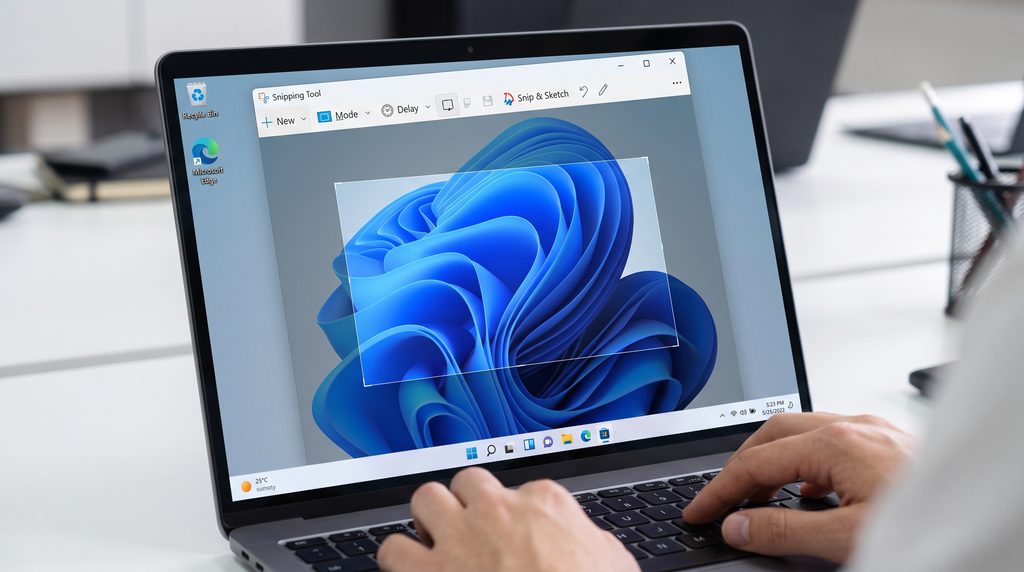
A Windows screen capture tool may work well for occasional screenshots but become inconvenient when it is used every day. Long-term suitability depends on how much manual work the tool creates, where files are stored, who controls access, and whether captures remain available if the workflow changes.
Consider the Total Cost of the Workflow
The real cost of Windows screen capture software includes more than a licence or subscription. A free application may still require time for:
- renaming and sorting files;
- creating project folders;
- uploading captures to another service;
- configuring access permissions;
- maintaining backups;
- locating older screenshots and recordings.
These tasks may be insignificant for occasional use but become a recurring operational cost when a user or team creates hundreds of files.
The most efficient option is therefore not automatically the tool with the lowest price. It is the one that reduces the combined cost of software, setup, maintenance, and manual file management.
Keep Captures in Portable File Formats
Screenshots and recordings should remain accessible outside the application that created them.
Before adopting a Windows screen capture app, users should confirm that they can:
- save original files locally;
- select or change the storage folder;
- open exported files in other applications;
- copy files into a backup system;
- move important captures to another workflow.
Standard image and video formats reduce dependence on one account or platform. They also make it easier to retain project evidence, tutorials, bug reports, and documentation after software or account changes.
Define Privacy and Access Responsibilities
Privacy depends not only on how a capture is created, but also on where it is stored and who can access it.
Locally stored files remain under the control of the device owner, but users are responsible for protecting them against unauthorized access, device failure, or accidental deletion. Cloud-hosted files are easier to share, but access permissions and retention rules must be managed carefully.
For regular use, teams should establish:
- where original files are stored;
- who can view, modify, or delete them;
- whether another copy exists;
- how deleted files can be recovered;
- how long captures should be retained.
This is particularly important when screenshots contain customer data, account details, internal interfaces, or confidential project information.
Avoid Dependence on One Account or Service
A sustainable workflow should not prevent users from accessing their files after changing software, reorganizing accounts, or discontinuing a cloud feature.
Before selecting a Windows screenshot capture tool, consider:
- whether files can be exported in bulk;
- whether local copies remain available;
- what happens when an account is closed;
- whether shared links remain active;
- whether an archive can be transferred to another system.
Cloud services can simplify collaboration, but important files should not become inaccessible simply because one subscription, account, or platform changes.
Plan for Archive Growth
Managing ten screenshots is simple. Managing hundreds of images and recordings across multiple projects requires consistent rules.
A growing archive needs:
- predictable file names;
- clear project separation;
- defined ownership;
- access permissions;
- backup procedures;
- retention and deletion rules.
The most suitable long-term tool is not necessarily the one with the largest feature list. It is the one that keeps files portable, recoverable, and manageable as the archive expands.
PixelTaken supports this type of workflow by allowing users to retain original files locally while using optional cloud access for captures that need to be shared. When comparing Windows screen capture software, the final decision should account for administrative effort, file ownership, privacy, backup responsibility, and archive growth—not only the immediate cost of creating a screenshot or recording.