
Windows Screenshot Capture Tool for Remote Virtual Assistants: How to Create SOPs for Client Workflows
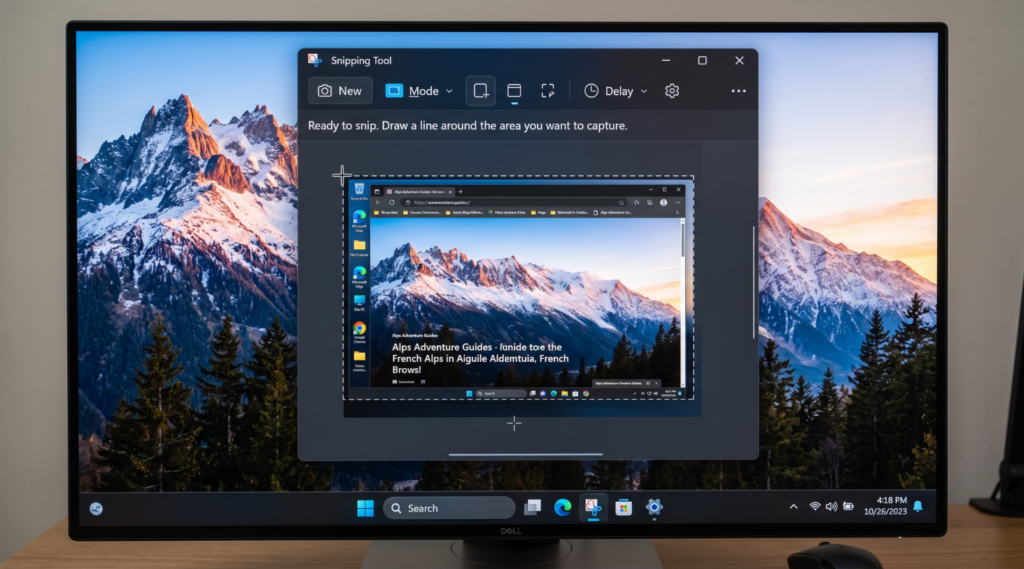
Client Workflows Virtual Assistants Should Turn into Screenshot-Based SOPs
Remote virtual assistants handle dozens of recurring client tasks every day, making consistent documentation essential for quality and efficiency. A Windows screen capture tool helps transform these repetitive workflows into clear, visual Standard Operating Procedures (SOPs) that are easier to follow, update, and share across teams. Instead of relying on text-heavy instructions, screenshot-based SOPs provide step-by-step guidance that reduces errors and speeds up onboarding for new assistants.
One of the biggest productivity gains for remote virtual assistants comes from documenting repetitive client processes before they become problems. Every recurring task that requires explanation, correction, or repeated onboarding is a strong candidate for a screenshot-based Standard Operating Procedure (SOP).
Many VAs begin by writing text instructions, but text alone often leaves room for interpretation. A client may organize folders differently, use custom CRM fields, rename products, or create approval steps that exist nowhere else. Even experienced assistants can miss these details when documentation relies only on written descriptions.
This is where a screen capture software becomes far more valuable than a simple note-taking document. Instead of explaining where to click or which setting to change, virtual assistants can document the exact interface, highlight important elements, and preserve the workflow exactly as the client expects it to be completed. The result is documentation that is easier to follow, easier to update, and significantly faster for new team members to learn.
Recurring VA Tasks That Need Visual SOPs
The best candidates for screenshot-based SOPs usually share one characteristic: they follow the same sequence every time.
Common examples include:
- Updating products in Shopify, WooCommerce, or Amazon Seller Central
- Publishing blog articles inside WordPress or other CMS platforms
- Scheduling social media posts across multiple channels
- Managing customer information in CRM systems
- Processing invoices and bookkeeping tasks
- Organizing files in Google Drive, Dropbox, or OneDrive
- Preparing weekly reports and dashboards
- Responding to support tickets using predefined workflows
- Managing email inboxes and calendar requests
- Updating project boards in Asana, ClickUp, Monday.com, or Trello
For each of these tasks, screenshots provide visual confirmation of exactly what should happen at every stage. Instead of reading several paragraphs describing navigation, another VA can immediately recognize the correct menu, button, form, or confirmation screen.
AWindows Snipping toolbecomes even more valuable when every client follows slightly different rules. Two Shopify stores may use completely different naming conventions, image requirements, collections, or publishing processes. A screenshot captures these client-specific differences far more effectively than text alone, reducing mistakes that occur when assistants rely on memory.
Modern remote teams also benefit because visual SOPs shorten onboarding. New virtual assistants spend less time asking questions, senior team members spend less time explaining recurring tasks, and clients receive more consistent results regardless of who completes the work. As businesses grow and delegate more responsibilities, screenshot-based documentation evolves from a helpful reference into a scalable knowledge base that supports consistent service delivery across the entire team.
How a Windows Screenshot Tool Helps VAs Capture Client-Specific Steps
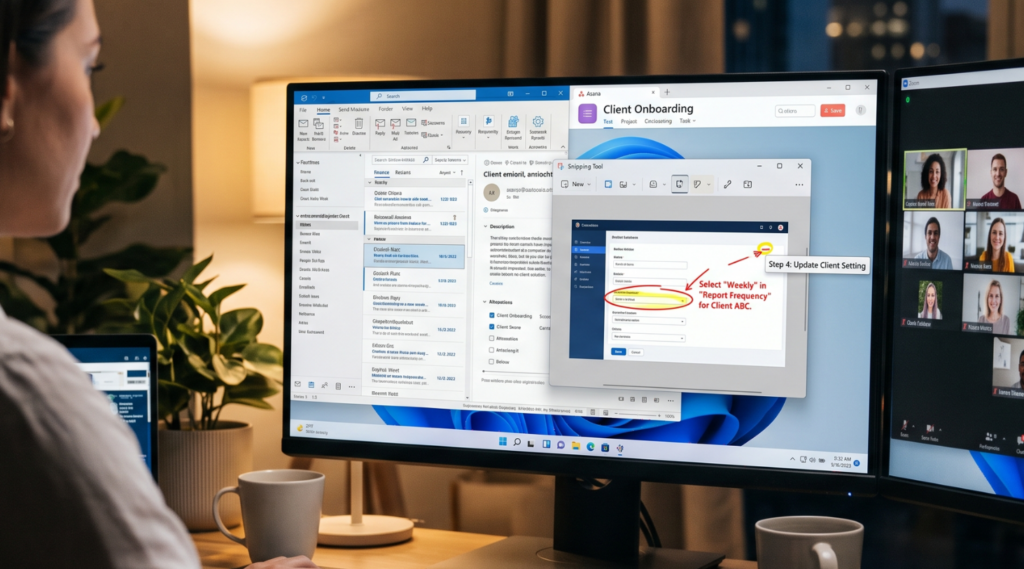
No two clients follow exactly the same workflow, even when they use the same software. One client may require products to be published with a specific naming convention, while another expects additional tags, custom fields, approval checkpoints, or internal notes before a task is considered complete. These client-specific requirements are often the first details lost when documentation relies only on written instructions.
A Windows Snipping tool allows virtual assistants to capture the exact screens where these decisions happen. Rather than describing every button or menu in text, screenshots preserve the actual interface, making it immediately clear which settings, options, or fields require attention. This visual context removes ambiguity and helps another assistant reproduce the workflow exactly as intended.
Capture the Rules That Make Each Client Workflow Different
For example, when documenting a Shopify product upload, the important step is rarely clicking “Add Product.” Instead, the documentation should show how the client structures product titles, organizes variants, assigns collections, formats SKUs, uploads images, and completes the final publishing review. A screenshot highlights these client-specific standards far more effectively than several paragraphs of text.
The same principle applies across other VA responsibilities. When preparing reports, screenshots can identify which filters should always be applied before exporting data. During CRM updates, they can indicate mandatory fields, lead statuses, or tagging conventions. In email management, screenshots can show folder structures, labels, response templates, and priority rules that are unique to a particular client.
A Microsoft screen capture tool becomes especially valuable whenever clients customize their software. Dashboards, navigation menus, permissions, and integrations often differ between accounts, meaning generic documentation quickly becomes outdated or misleading. Capturing the actual workspace ensures the SOP reflects the client’s real environment instead of a standard software tutorial.
Many remote virtual assistants also combine static screenshots with short recordings. AWindows screen recorder toolis useful for documenting actions that involve multiple clicks, drag-and-drop operations, menu navigation, or conditional decision-making. For teams that create SOPs regularly, dedicated documentation tools such as PixelTaken provide an alternative by combining screenshot capture, screen recording, annotations, cloud sharing, and organized galleries in one workspace. Instead of switching between multiple applications, VAs can capture both images and videos while keeping all client documentation together, making long-term SOP maintenance much easier.
The result is documentation that reflects how the client actually works, not how the software is generally designed to be used. This level of accuracy reduces onboarding time, minimizes avoidable mistakes, and allows remote teams to deliver consistent work even as responsibilities are transferred between multiple virtual assistants.
What to Capture with a Windows Screenshot Tool in Repetitive VA Tasks
Creating an effective SOP is not about capturing every screen. The goal is to document the moments where another virtual assistant is most likely to make a mistake, hesitate, or ask the client for clarification. Windows screen capture software should be used strategically to highlight decision points rather than every click in the workflow.
Instead of filling documentation with dozens of nearly identical screenshots, focus on the screens that explain what matters and why it matters. This keeps SOPs concise while still providing enough context for another team member to complete the task independently.
Interface layouts and navigation
Whenever a client uses a custom dashboard, CRM, CMS, or project management platform, capture the navigation structure first. A screenshot showing where features are located helps new assistants understand the workspace immediately instead of searching through unfamiliar menus.
Required fields and client-specific settings
Some tasks depend on entering information in a particular format. Document mandatory fields, dropdown selections, naming conventions, tags, categories, approval statuses, or custom settings that must always be applied. These screenshots become quick visual references that reduce formatting errors.
Before-and-after examples
One of the most valuable additions to any SOP is a comparison between an unfinished task and the expected final result. Showing both states makes quality expectations much clearer than describing them with text alone. This approach works especially well for content publishing, product management, CRM updates, and spreadsheet formatting.
Validation and confirmation screens
Many workflows include a final review before changes are published or submitted. Capture confirmation dialogs, preview pages, successful upload messages, completed reports, or approval screens. These images help assistants verify that the task has been completed correctly before moving on.
Short recordings for dynamic actions
Some workflows are difficult to explain with screenshots alone. Drag-and-drop actions, multi-step navigation, filtering large datasets, or switching between multiple applications are often easier to demonstrate using a Windows screen recorder tool. Short videos complement screenshots by showing movement while keeping the written SOP simple and easy to scan.
For teams documenting dozens of recurring processes, solutions like PixelTaken make this workflow more efficient by combining screenshots, screen recordings, annotations, and cloud storage in a single workspace. Instead of saving files across different folders and applications, virtual assistants can organize documentation by client or project, making SOPs easier to maintain as workflows evolve.
A Windows screen capture app becomes far more valuable when screenshots are captured with intention. By focusing on navigation, required inputs, validation points, and final outcomes instead of every individual click, virtual assistants create documentation that is faster to maintain, easier to follow, and significantly more useful for future onboarding.
Annotated Screenshots for SOPs: How VAs Reduce Client Back-and-Forth
Most follow-up questions from clients are not caused by missing documentation. They happen because the documentation leaves room for interpretation. A screenshot without context can be just as confusing as a paragraph of text. Adding simple annotations transforms an ordinary image into clear visual guidance that helps virtual assistants complete tasks correctly the first time.
Instead of sending separate messages like “Click this button,” “Use this field,” or “Ignore this section,” VAs can place arrows, highlights, numbered steps, or short notes directly on the screenshot. This immediately shows where attention is required without forcing the client or another team member to interpret the interface on their own.
Use annotations to explain decisions, not just locations
The most effective annotations anticipate questions before they arise. Rather than marking a button with an arrow alone, explain why that action matters.
For example:
- Highlight the exact field where a product SKU should be entered.
- Add a note explaining why a specific filter must always be selected.
- Mark which attachments should be uploaded and which should be skipped.
- Identify optional settings that should remain unchanged.
- Point out approval checkpoints before publishing or submitting work.
This approach turns screenshots into practical instructions instead of static images.
Keep annotations simple and consistent
Overloading a screenshot with colors, arrows, and long explanations often makes documentation harder to follow. Use one annotation style throughout every SOP so information is easy to scan. Numbered steps, consistent colors, and short labels usually communicate instructions more effectively than paragraphs placed beside the image.
When documentation includes both screenshots and videos, consistency becomes even more important. A Windows screenshot capture tool can document key checkpoints, while short recordings explain actions that happen between those checkpoints. Together, they create a workflow that is easy to understand without requiring lengthy written explanations.
Share documentation that stays easy to update
Annotations are most valuable when documentation changes frequently. Clients introduce new software, modify approval processes, or reorganize dashboards over time, so updating a few annotated screenshots is much faster than rewriting an entire SOP from scratch.
For teams managing documentation across multiple clients, platforms like PixelTaken simplify this process by combining screenshots, annotations, recordings, and cloud sharing in one place. Instead of editing files across different tools, virtual assistants can quickly update existing documentation and share the latest version with teammates or clients.
Clear annotated screenshots reduce unnecessary clarification messages because they answer common questions before work even begins. The result is smoother collaboration, fewer revisions, and more time spent completing client tasks instead of explaining how those tasks should be performed.
How a Windows Screenshot Tool Keeps VA SOP Documentation Updated
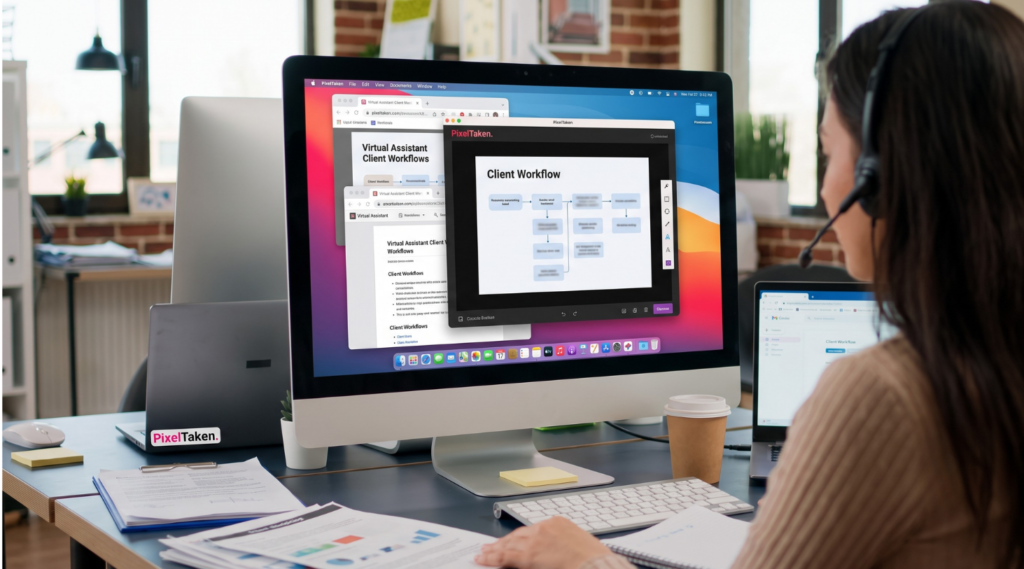
The biggest challenge with SOPs is not creating them, it’s keeping them accurate as client workflows evolve. Software interfaces change, businesses introduce new approval processes, and recurring tasks are refined over time. Documentation that isn’t updated quickly becomes unreliable, leading virtual assistants to rely on memory instead of the SOP itself.
A Windows screen capture tool makes updating documentation much faster because only the affected steps need to be replaced. Instead of rewriting an entire guide, a VA can capture a new screenshot, replace an outdated image, and keep the rest of the workflow unchanged. This allows documentation to evolve alongside the client’s business without requiring a complete rewrite every time a small process changes.
Treat SOPs as living documents
The most effective remote teams don’t consider an SOP finished after it’s published. They review documentation whenever:
- a client updates their software or dashboard;
- a recurring task changes;
- a new automation or integration is introduced;
- quality issues or repeated questions appear;
- responsibilities are transferred to another assistant.
Small, incremental updates keep documentation relevant and prevent outdated instructions from spreading across the team.
Version documentation by client and process
As virtual assistants work with multiple clients, organizing SOPs becomes just as important as creating them. Screenshots, recordings, and supporting files should be grouped by client, department, or workflow so updates can be made without searching through dozens of unrelated documents.
This is where a dedicated Windows screen capture app can simplify ongoing documentation. While Windows provides built-in tools for capturing screenshots and recordings, platforms like PixelTaken help teams organize assets into folders and workspaces, making it easier to maintain separate SOP libraries for different clients and projects.
Build documentation into your daily workflow
One of the most practical habits is updating an SOP immediately after completing a task that has changed. If a client introduces a new approval step or redesigns part of their dashboard, capturing the updated screen right away takes only a few minutes. Waiting until later often results in forgotten details, outdated instructions, and unnecessary clarification requests from teammates.
Reliable Windows screen capture software supports this continuous documentation process by making screenshots and recordings easy to create whenever a workflow changes. Over time, these small updates produce a knowledge base that remains accurate without requiring large documentation projects every few months.
Ultimately, the value of screenshot-based SOPs extends far beyond documentation. A well-maintained knowledge base becomes the team’s single source of truth, allowing work to be delegated confidently without relying on verbal instructions or individual experience. As new virtual assistants join and client workflows evolve, every process remains consistent, transparent, and easy to maintain. This level of process ownership helps agencies and remote teams scale while continuing to deliver reliable results.