How Startup Teams Use Windows Screenshot Tool to Document MVPs Faster

For startup teams, MVP documentation is often difficult because the product changes faster than the documentation itself. A simple Windows Screenshot Tool can help capture changes quickly, but the bigger challenge is keeping those screenshots organized and useful as the product evolves. A feature that looks clear on Monday can already be redesigned, removed, or replaced by Friday. Founders, developers, designers, marketers, and early testers may all discuss the same product flow, but they often do it across different tools: Slack, Notion, Jira, Trello, Google Docs, Figma, email, or quick video calls. As a result, important details can easily get lost.
At the MVP stage, most teams do not have time to create long technical specifications for every screen. The priority is usually speed: test the idea, build the core flow, fix obvious friction, and prepare the product for early users or investors. But when documentation is skipped completely, the team can run into another problem. Developers may not know which version of the screen is final. Designers may update a flow without everyone seeing the change. Founders may explain the same feature logic again and again because there is no simple visual reference.
Why MVP Documentation Is Difficult for Startup Teams
Screenshots Help Capture Product Context Quickly
This is where screenshots become useful. A clear screenshot can capture the exact state of a feature, dashboard, form, onboarding step, pricing page, admin panel, or user flow at a specific moment. Instead of writing a long explanation, a startup team can show what changed, what is still unfinished, and what should be reviewed next.
The challenge is that basic captures are often not enough once the MVP becomes more complex. A screenshot without context can create confusion too. The team may see the screen but not understand what the image is meant to explain, which area matters most, or why the screenshot was saved. That is why startup documentation needs more than random images in a folder. It needs a lightweight workflow: capture the screen, add context, highlight the important area, name the file clearly, and place it where the team can find it later.
Basic Screen Capture Tools Are Not Always Enough
Built-in options such as a Microsoft screen capture tool can help with quick captures, especially when a founder or developer only needs to save one screen. But startup teams often need more than a static image. They may need to document a multi-step setup flow, show how an early feature behaves, or explain what happens after a user clicks a button. In those cases, a Windows screen recorder tool can support the documentation process better than screenshots alone.
PixelTaken can be a useful alternative to the Snipping Tool for startup teams that need more context around their visual product notes. Instead of only saving a static screenshot, teams can use PixelTaken to capture specific areas, annotate important parts, blur sensitive details, record short screen videos, and share visual updates more clearly. This makes it easier to turn quick captures into reusable MVP notes that still make sense when the team reviews them later.
The main difficulty is not taking the screenshot itself. The real challenge is keeping MVP documentation clear while the product is still unstable. If screenshots are saved without labels, versions, dates, or comments, they quickly become outdated. If they are scattered across too many tools, the team wastes time searching for the right visual reference. If they are too vague, they create more questions instead of reducing them.
Startup Documentation Needs a Simple Workflow
That is why startup teams need a simple but consistent screenshot-based documentation process. The goal is not to create perfect enterprise-level documentation. The goal is to make the current MVP version easier to understand, reduce repeated explanations, and help everyone see the same version of the MVP at the same time.
How Windows Screenshot Tool Help Capture MVP Screens, Flows, and Early Product Decisions
Turning Unfinished MVP Screens into Documentation
At the MVP stage, many product screens are not final yet:
- a signup page may still have temporary copy;
- a dashboard may include placeholder data;
- a settings page may work only for one user role;
- a pricing screen may exist in a simple version before the startup adds billing logic, plan limits, or account permissions.
This is exactly why screenshots are useful for startup documentation. A Windows screenshot capture tool helps the team save the current state of a screen while it is still temporary, incomplete, or limited to the first MVP version. The screenshot does not need to prove that the interface is perfect. Its purpose is to show what exists right now, what is temporary, and what still needs to be defined.
For example, a startup team can capture the first version of an onboarding screen and add a short note: “MVP version. Only email signup is supported now.” Another screenshot may show a dashboard with the note: “Analytics cards are placeholders until real tracking is connected.” This gives the team a practical visual record of the MVP before the product is stable enough for formal documentation.
Capturing MVP Flow Logic Before Full Specs Exist
Startup teams often build the first version of a product before every detail is fully documented. The team may know the basic flow: a user creates an account, creates a project, invites a teammate, uploads a file, or completes the first setup step. But the exact screen order, field names, permissions, and limits may still change during development.
Screenshots help capture this early flow logic in a simple way. The team can save the key screens in order and add short notes about what each step is supposed to do. This creates a lightweight MVP map that shows how the product works today, not how it may work six months later.
This is useful when the team needs to understand which steps are already built, which ones are temporary, and which parts still depend on future product decisions. It keeps the MVP understandable without turning early documentation into a heavy process.
Saving Early Scope Decisions with Visual Notes
MVP development often includes fast scope decisions. A team may decide to remove a complex filter, delay advanced permissions, simplify account setup, or replace a multi-step flow with one simple screen. These decisions are easy to lose when they are not connected to the exact MVP screen where they happened.
Using a Windows screen capture app, a startup team can save the screen connected to the decision and add a short explanation.
For example:
- “Advanced filters removed from MVP version”;
- “Team roles will be added after beta”;
- “Manual export only for first release”.
This makes the MVP scope easier to understand later, especially when the team reviews what was intentionally simplified.
This is different from product feedback or roadmap planning. The screenshot is not used to justify a future feature. It is used to keep a record of what the startup decided to include, exclude, or postpone in the first usable version of the product.
Creating a Visual MVP Record Across Versions
An MVP can change many times before launch. One week, the product may have a basic setup screen. Next week, the team may add user roles. Later, the same area may include payment limits, workspace settings, or admin controls. Without visual records, it becomes hard to compare how the product looked at different MVP stages.
A simple Windows screen capture software workflow can help the team keep a visual record across MVP versions. Screenshots can be grouped by product area, version, or build date. For example: “Onboarding: MVP v1,” “Dashboard: beta build,” or “Workspace settings: first client demo.” This gives the team a clearer product history without creating a large documentation system.
PixelTaken can fit this workflow when startup teams want to keep MVP captures connected to product versions. For example, a team can save screenshots by build stage, feature area, or demo version, so later reviews show how the MVP changed from the first internal build to the beta version.
What Startup Teams Should Document with Screenshots During MVP Development
First Account State and Initial Setup
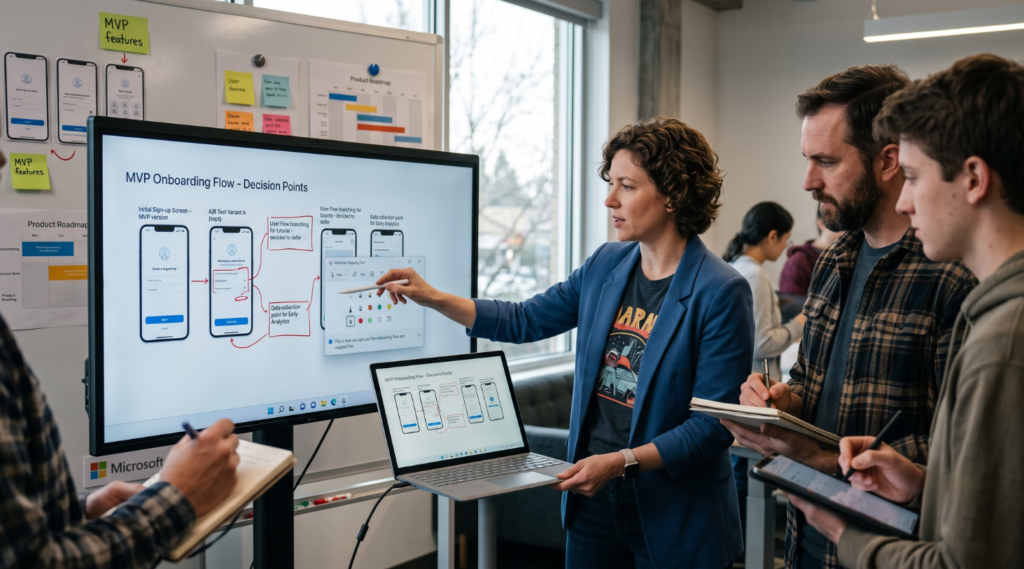
One of the first things startup teams should document with screenshots is the first account state inside the MVP. This is not only the signup screen. It can also include the first empty workspace, the first setup checklist, the first project creation screen, or the first message a user sees after entering the product.
These screens matter because they show what the MVP looks like before the user adds real data. A Windows screen capture tool can be enough for basic internal captures at this stage, especially when the team only needs to save the first version of a screen for documentation. But the screenshot should still answer a clear question: what does a new user see first, and what action are they expected to take?
For example, if the MVP opens with an empty workspace, the screenshot should show the default state clearly. If the first action is to create a project, invite a teammate, or upload a file, that screen should be captured as part of the MVP documentation. This helps the team keep a clear record of the starting point without turning the section into a UX review.
Core Working Features and Disabled Elements
Startup teams should also document the screens that show what the MVP can actually do. These are the screens connected to the main working feature: a task board, booking form, upload area, customer list, reporting screen, workspace panel, or simple admin view.
The important part is to capture not only what works, but also what is not active yet. If a button is visible but disabled, if an advanced filter is hidden, if an export option is manual for now, or if a feature works only with test data, the screenshot should make that clear. This helps the team separate finished MVP functionality from elements that are still experimental or planned for later.
AWindows screen Snipping Toolcan help capture these screens quickly, but the screenshot should be saved with a useful note. For example: “Export button visible, manual export only,” “Search works only by name,” or “Bulk actions disabled in MVP.” This makes the documentation more practical because it explains the current product limit, not just the screen layout.
Empty States, No-Data Screens, and Placeholder Content
MVPs often have many screens that appear only when there is no data yet. These screens are easy to ignore, but they are important because they show how the product behaves before users create anything. Startup teams should document empty search results, no uploaded files, no invited teammates, no saved reports, no transactions, no messages, or no connected integrations.
Screenshots of these states help the team understand where the product still needs clearer content, better instructions, or a more useful default view. For example, a no-files screen may need a short explanation about what the user should upload first. A no-teammates screen may need an invite button. A no-transactions screen may need a note about when data will appear.
The goal is not to evaluate design polish. The goal is to capture the real MVP state so the team does not confuse a placeholder screen with completed functionality. This is especially useful when the product is being prepared for early users, beta testers, or a first client demo.
Role-Based Screens and Access Differences
If the MVP includes different user roles, screenshots should show what each role can see. Even a simple product may have an admin view, regular user view, client view, guest view, vendor view, or internal team view. These differences can become confusing if they are only described in text.
For example, an admin may see billing settings, user management, and account controls, while a regular user may only see their own workspace. A client may see a limited dashboard, while an internal team member may see editing options. Screenshots help document these access differences clearly during development.
A simple Windows screen capture app can be useful for saving each role view as a separate reference. The team can label screenshots as “Admin view,” “Client view,” “Team member view,” or “Guest access.” This makes it easier to understand what each user type can do in the MVP without mixing all permissions into one long explanation.
Setup, Settings, and Operational Screens
Startup teams often document the main product flow but forget the screens that control how the MVP works behind the scenes. These may include workspace settings, account preferences, notification controls, billing setup, invitation screens, integration settings, import/export pages, or internal admin tools.
These areas are important because they often define the practical limits of the MVP. A settings screen may show which options are already editable. An invitation screen may show whether users can invite teammates by email or only through manual setup. An integration page may show which services are connected now and which are only planned.
Capturing these operational screens helps the team document the product as a working system, not only as a set of visible user-facing pages. It also gives developers, founders, and support people a clearer reference when they need to explain what the MVP can manage internally.
Short Product Behaviors That Need Motion
Some MVP details are hard to explain with one static screenshot. A dropdown may show several temporary options. A modal may appear after a user clicks a button. A file upload may show progress. A form may reveal another field only after a specific choice. A success message may appear for only a few seconds.
In these cases, a short recording can be more useful than several separate screenshots. A Windows screen recorder tool can help capture one small behavior without turning it into a full product demo. The recording should stay focused on one action: opening a menu, completing a form, uploading a file, switching user roles, or moving from one state to another.
The recording should stay focused on one action: opening a menu, completing a form, uploading a file, switching user roles, or moving from one state to another.
How Screenshot-Based MVP Documentation Improves Communication Between Founders, Developers, and Designers
Turning Founder Ideas into Clear Build Context
In many startup teams, founders explain product ideas quickly because they are still testing the business model, talking to early users, and changing priorities. A founder may describe a feature in business terms: “users should be able to invite a teammate,” “the dashboard should show progress,” or “the first setup should feel simple.” These ideas are useful, but they can be too broad for development unless they are connected to a specific product screen.
Screenshot-based MVP documentation helps turn these ideas into clearer build context. A founder can attach a screenshot to a short note and explain what the screen should communicate, what action matters most, and what can stay simple for the first version. This gives the team a practical reference without turning every idea into a long product brief.
For example, instead of saying “make the setup easier,” the founder can point to the current setup screen and add a note: “This step should ask only for workspace name in MVP. Team invitation can come later.” The screenshot keeps the conversation connected to the actual product instead of a general idea.
Helping Developers Understand the Intended Behavior
Developers often need more than a task title to understand what should happen in an MVP screen. They need to know which button starts the action, which field is required, what happens after submission, and which parts can stay simple for the first release. A screenshot can make these details easier to understand before the developer starts building or updating the feature.
A Windows screen capture tool can help the team create small visual references for development handoffs. The screenshot does not replace technical requirements, but it gives the developer a clearer starting point. It shows where the feature appears, what the current screen contains, and what part of the interface the task is connected to.
This is especially useful when the MVP has temporary logic. For example, a screenshot can show that a “Send invite” button should only create a pending invite in the first version, without advanced permissions or automated reminders. The developer gets the necessary context without reading through a long discussion.
Giving Designers Better Product Constraints
Designers in startup teams often work with limited time, partial flows, and unfinished product logic. They may not need a full design review for every MVP screen, but they do need to understand what is already built, what cannot be changed easily, and which parts are still flexible.
Screenshots can help communicate these constraints. A founder or developer can capture the current build and explain which areas are fixed for now, which areas can be adjusted, and which parts should wait until the MVP is tested with real users. This keeps design work connected to the current product reality.
For example, a screenshot of a settings page may show that the page structure is already implemented, but the labels, helper text, or button order can still be improved. This helps the designer suggest practical improvements without redesigning a part of the MVP that the team does not have time to rebuild yet.
Making Handovers Easier in Small Teams
Startup teams often work with flexible roles. A founder may write product notes, a developer may make small UI decisions, and a designer may help clean up screens only when the product area becomes important. Because of this, handovers can become messy if every explanation depends on a meeting or a private message.
Screenshot-based documentation makes handovers easier because the next person can open the visual reference and understand the context faster. A screenshot can show the screen, the current limitation, the expected action, and the part that needs attention. This is useful when a task moves from founder to developer, from developer to designer, or from designer back to the build team.
A simple handover note can include three things: the screenshot, the expected MVP behavior, and the next action. For example: “This is the current invite screen. MVP should support email invites only. Next step: add confirmation message after invite is sent.” This keeps the handover short but clear.
Reducing Misunderstandings Before MVP Reviews
Before an MVP review, each role may focus on different questions. Founders may check whether the product still supports the core use case. Developers may check whether the feature can be built with the current logic. Designers may check whether the screen is understandable enough for early users. Screenshots help bring these questions into one shared view.
A Windows screenshot capture tool can support this process by giving the team a visual base for review discussions. Instead of reviewing abstract notes, the team can look at the same screen and discuss what should stay, what should be simplified, and what needs a clearer explanation before the MVP is shown to users.
PixelTaken can also be used here when the team needs to prepare a screenshot or short recording as a clear handoff note.
Built-in Windows Screenshot Tool vs PixelTaken for Fast MVP Documentation
Built-in Windows Tools Are Useful for Everyday Capture
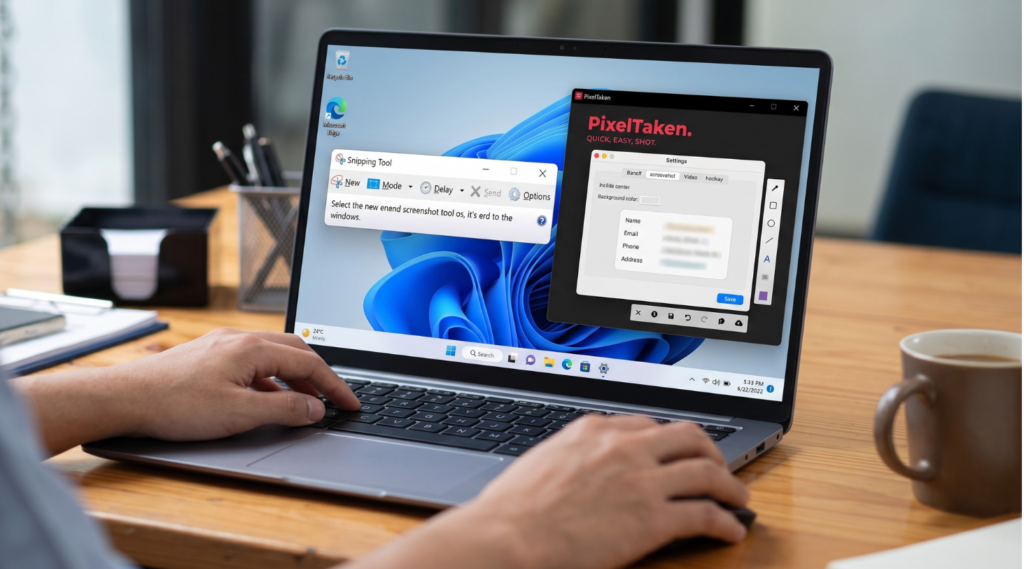
The latest Windows 10 and Windows 11 workflows make screen capture much easier than older screenshot methods. Users can press Win + Shift + S to capture a selected area, window, or full screen, use Print Screen for a quick snapshot, or save screenshots automatically with Windows + PrtScn. In newer Windows 11 versions, Snipping Tool also supports short screen recordings through Win + Shift + R, which makes it easier to show small product interactions without installing another recorder.
This makes a Windows screen capture tool practical for early MVP work. A founder can save the current onboarding screen before a call. A developer can capture how a form looks in the latest build. A designer can record a short interaction, such as opening a menu, submitting a form, or checking how a temporary modal appears on the screen.
For startup teams, the main advantage is speed. The tools are already built into Windows, shortcuts are easy to remember, and the team can capture static screens or short video clips during everyday work. This is useful when the team needs a quick visual reference for an internal note, a meeting discussion, or a simple MVP check.
Because of these updates, built-in Windows tools are a strong starting point for early product notes. Many teams can use them confidently for quick screenshots, short recordings, and basic visual references.
Where PixelTaken Fits Better in an MVP Documentation Workflow
Recent Windows 10 and Windows 11 workflows already cover everyday screenshots and short recordings well. Startup teams can use built-in Windows tools to capture a selected area, window, full screen, or quick video clip when they need a simple visual reference.
PixelTaken works well as an alternative Windows screen capture tool when the team wants a more focused product documentation workflow. For example, it can be useful when screenshots and videos need to be prepared for shared product notes, internal tasks, demo reviews, or team discussions instead of staying as one-time personal captures.
One practical difference is cloud sharing. PixelTaken includes an option to upload videos to the cloud after recording, which can be helpful when a founder, developer, or designer needs to share a short MVP interaction without manually moving the file between tools. It also gives teams recording settings for audio input, system sound, microphone, and video input workflows, which can make it useful as a Windows screen recorder tool for short product walkthroughs.
Another useful detail is capture precision. PixelTaken can show the selected capture area size in pixels, which helps when the team wants consistent screenshots for product notes, tutorials, or MVP documentation pages. This is not always necessary for everyday capture, but it can matter when screenshots are reused across several documents or reviews.
So the difference is not “Windows tools vs PixelTaken.” A more realistic setup is to use built-in Windows tools for fast native capture and use PixelTaken as a Windows screen capture app when the capture needs to become a clearer, shareable, and reusable MVP documentation asset.
Choosing the Right Tool for the MVP Stage
The right tool depends on how often the startup uses screenshots in its product work. For quick everyday captures, built-in Windows tools are a strong starting point. A Microsoft screen capture tool or built-in Windows screen Snipping tool can work well for saving screens, recording short clips, marking up basic details, or sharing simple visual references.
A dedicated capture workflow becomes useful when screenshots and recordings are used more often in shared product notes. In that case, PixelTaken can work as an alternative Windows screen capture app that helps the team prepare visual materials for internal tasks, demo reviews, product discussions, or reusable documentation.
For example, a startup may use Windows tools to capture a quick screen during a call. But if the same screen needs to be saved with context, reused in a product note, shared with a teammate, or connected to an MVP review, PixelTaken can be a practical alternative Windows screen capture software for that workflow.
A Balanced Setup for Startup Teams
Startup teams do not need to choose only one tool. A simple setup is enough: use built-in Windows tools for fast native screenshots and short recordings, then use PixelTaken when the capture needs to be prepared, shared, or reused as part of the team’s product documentation.
This keeps the comparison realistic. Windows 10 and Windows 11 tools are strong for everyday capture, while PixelTaken works well as a dedicatedWindows screenshot capture toolfor team-ready MVP visuals.
How to Keep MVP Documentation Clear, Updated, and Useful as the Product Changes
Use Simple Names for Screenshots and Recordings
MVP documentation becomes difficult to use when screenshots are saved with random file names. A folder full of images like “Screenshot 1,” “Capture 2026,” or “Untitled” does not help the team understand what each file shows. Startup teams should use short but clear names that include the product area, screen type, and version or date.
For example, instead of saving a file as “screenshot-final,” the team can use names like “onboarding-empty-state-v1,” “admin-settings-beta-demo,” or “checkout-flow-before-payment-update.” This makes screenshots easier to find later, especially when the MVP changes several times before launch.
A clear naming system also helps when captures come from different tools. Whether the team uses a built-in Windows screen capture tool, PixelTaken, or another capture method, the file name should explain what the screenshot represents before someone even opens it.
Add One Short Note to Every Important Capture
A screenshot is more useful when it includes context. Startup teams do not need long explanations for every image, but each important capture should answer one simple question: why was this saved?
A good note can be very short:
- “Current MVP version before beta review.”
- “Temporary manual export flow.”
- “Admin-only setting for first release.”
- “Demo data, not connected to real analytics yet.”
This keeps documentation easy to scan. The goal is not to create a heavy product specification. The goal is to make sure screenshots still make sense after a few days or weeks, when the team may not remember the original discussion.
Separate Current MVP Screens from Old References
One common mistake is keeping old screenshots next to current product notes without any status. When the product changes, outdated captures can create confusion. Someone may open an old screenshot and assume it still represents the current product.
Startup teams can avoid this by using simple labels:
| Screenshot Status | Meaning |
| Current | This screen reflects the latest MVP version |
| In progress | This screen is being updated or reviewed |
| Temporary | This screen exists only for beta, demo, or internal use |
| Archived | This screenshot is outdated but kept for history |
This small structure helps the team understand which screenshots should guide current work and which ones are only historical references.
Review MVP Documentation After Each Product Update
MVP documentation should not be updated only at the end of development. It works better when the team checks it after each meaningful product update. This does not need to be a long review. A short documentation cleanup after a new build, demo, or beta update can be enough.
The team can quickly check:
- Which screenshots still match the current MVP?
- Which recordings show outdated behavior?
- Which notes need to be updated?
- Which old captures should move to an archive?
- Which new screens need to be added?
This keeps the documentation useful while the product is still changing. It also prevents the team from doing a large cleanup later, when too many screenshots are already outdated.
Keep Product Notes Close to the Work
Screenshots should not live in a separate place where nobody checks them. They are more useful when they are connected to the tools the team already uses for product work. This may be Notion, Jira, Trello, ClickUp, Google Docs, Slack, or an internal product wiki.
For example, a screenshot of a temporary billing screen should be attached to the billing task or product note. A short recording of a setup flow should be placed near the checklist for that flow. A screenshot of an admin setting should stay close to the internal documentation for admin access.
This makes screenshots part of the working process, not just files saved somewhere on a desktop.
Keep the Process Lightweight
The best MVP documentation process is the one the team can actually maintain. Startup teams do not need complex rules, long templates, or perfect formatting. A simple process is enough:
capture the screen, name it clearly, add one short note, connect it to the right task or document, and update it when the product changes.
This keeps screenshot-based documentation practical. It helps the team preserve useful product context without slowing down development. As the MVP grows, clear and updated screenshots can make the product easier to explain, review, and improve without turning documentation into a separate project.