Windows Screen Capture Tool for Product Managers: Feature Feedback, Roadmaps, and Better User Flows
Product managers use a Windows screen capture tool not only to report bugs, but also to explain feature feedback, clarify product decisions, and document user flows. A simple captured screen can show what users see, where they hesitate, and which part of the interface needs more context before the team discusses roadmap priorities.In product management, a Windows screenshot capture tool is most useful when every screenshot is connected to a clear decision: whether to improve a feature, adjust a user flow, support product feedback, or show stakeholders why a roadmap item matters. Tools like PixelTaken help PMs capture screens, add quick annotations, and keep visual feedback connected to real product work.
Product Managers Can Use a Windows Screen Capture Tool Beyond Bug Reports
Screenshots Help PMs Turn Vague Feedback into Clear Context
For many teams, Windows screenshots are still associated with bug reports: something is broken, someone captures the issue, and the screenshot goes to a developer or QA specialist. But for product managers, screenshots can play a much broader role. They help turn unclear feedback, feature ideas, and user flow problems into visual context that the whole team can understand faster.
A product manager often works between users, stakeholders, designers, developers, support teams, and leadership. Each group may describe the same product issue differently. A customer might say that a feature is “confusing.” A stakeholder might ask why a certain button is not visible enough. A designer may need to understand which screen creates friction in the flow. A developer may need more context before estimating the change. In these situations, a simple Windows desktop screenshot can make the conversation more specific. A Windows screen capture tool helps PMs make these discussions less abstract. Instead of relying only on written comments, a PM can capture the exact product screen and connect the feedback to a real interface state.
Screenshot Feedback Is Not Only for Technical Issues
Instead of writing a long explanation, a PM can capture the exact screen, mark the unclear area, and attach a short note about what the user expected to happen. This makes screenshot feedback more practical than text-only comments. The screenshot shows the interface state, the surrounding elements, the user’s position in the flow, and the part of the experience that needs attention.
This is especially useful when product feedback is not a technical bug. For example, the feature may work correctly from an engineering perspective, but users may still miss an important CTA, misunderstand a filter, skip a step during onboarding, or feel that a form has too many fields. These are product and UX problems, not always QA defects. Screenshots help product managers document these moments without turning every observation into a formal bug ticket.
Visual Context Makes Product Discussions Easier to Prioritize
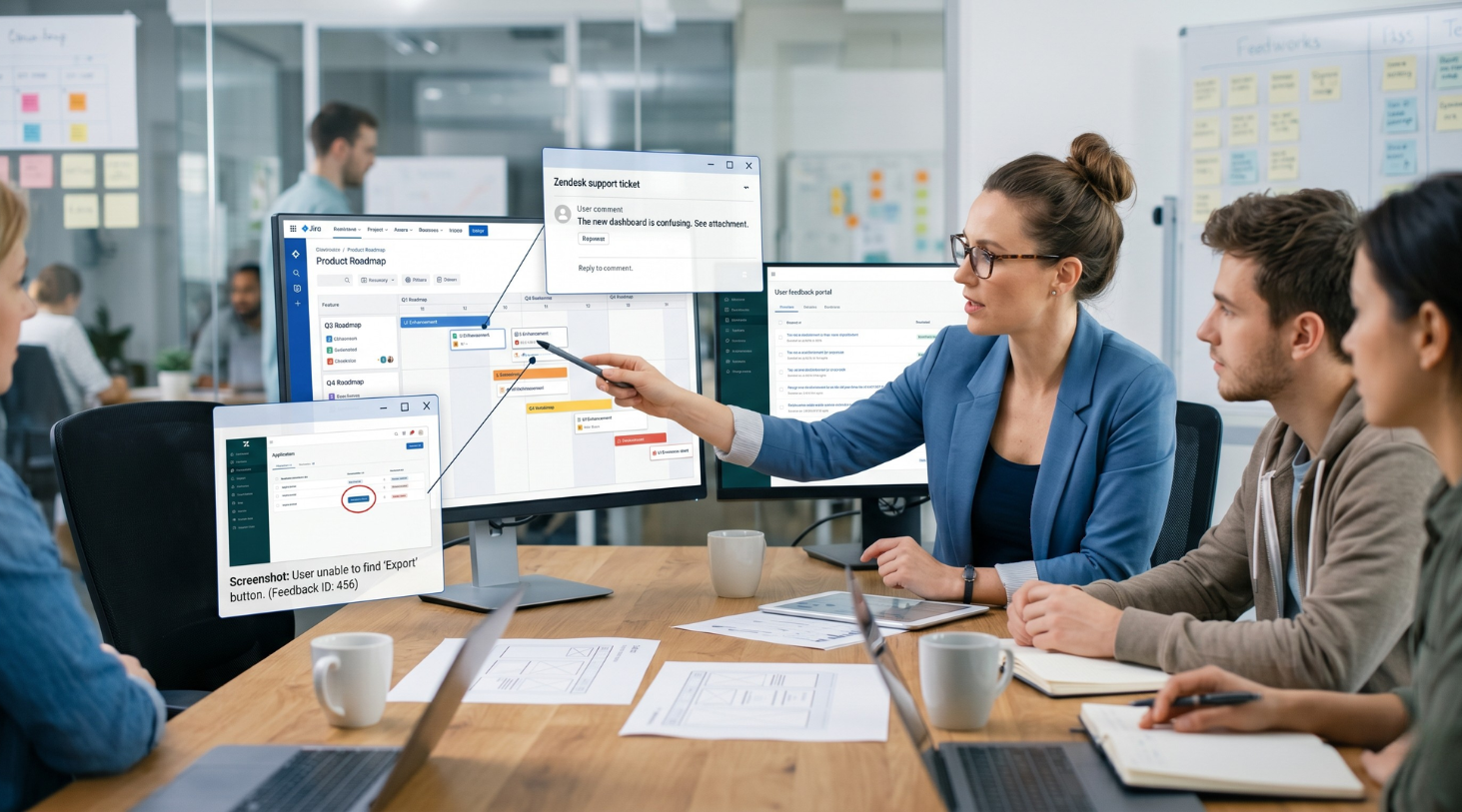
For roadmap discussions, visual context can also make feature feedback easier to prioritize. A screenshot does not decide what goes into the product roadmap, but it helps explain why a request matters. When several users point to the same confusing step or the same missing action, collected screenshots can support a stronger product argument than scattered comments in Slack, email, or support tickets.
This is where tools like PixelTaken can fit naturally into a product workflow. A PM can capture a screen, add arrows or highlights, write a short comment, and share the visual context with the team without making the process too heavy. The goal is not just to show “what is wrong,” but to make product conversations clearer, faster, and easier to connect with real user behavior.
How Screenshot Feedback Helps PMs Define Feature Requests Clearly
Feature Requests Need Placement, Not Just Description
A feature request is rarely complete when it is written as a short sentence. “Add export,” “show more details,” “make the action easier,” or “add a shortcut” may sound clear at first, but each of these requests can lead to several different implementation options.
For product managers, the key question is not only what users are asking for, but where this change should live in the product. Screenshot feedback helps connect the request to a specific screen, state, or step in the interface. A PM can show whether the feature belongs inside a table, near a CTA, in a settings page, in a user profile, or after a completed action.
For example, a request like “add export to PDF” can mean different things depending on the product context. It may belong on a report page, inside a billing section, next to a filtered table, or after a confirmation screen. A screenshot helps narrow the idea from a general request to a specific product placement decision.
Screenshots Help PMs Define the Scope of a Change
Feature requests can quickly grow if the team does not define their boundaries early. A small request may look like a simple button at first, but later require new permissions, backend logic, empty states, error handling, or changes across several screens.
A Windows screenshot helps the product manager start scoping the change before it reaches design or development. By looking at the current screen, the team can see whether the request affects one UI element, one screen state, a full user flow, or a larger product area.
For example, if users ask for a “quick edit” option, the screenshot can help clarify whether the product needs:
| Product question | What the screenshot helps clarify |
| Is this a small UI change? | The feature may only need a visible edit icon or inline action |
| Does it affect user permissions? | Different roles may need different access to the action |
| Does it change the flow? | Users may need a new edit state, confirmation step, or cancel option |
| Does it require new data logic? | The feature may depend on validation, saved states, or backend updates |
This makes feature feedback more useful because it helps the team understand the size of the change before it becomes a backlog item.
Screenshots Turn Feature Ideas into Implementation Questions
A feature idea becomes easier to discuss when it is tied to implementation questions. A PM does not need to write a full technical specification at the feedback stage, but they should help the team understand what needs to be decided next.
A screenshot can support these questions:
- Where should the new action appear?
- What should happen before and after the user clicks it?
- Does the change affect only one screen or several steps?
- Does the current layout have enough space for this feature?
- Is this a new feature or an improvement of an existing flow?
- What states need to be considered: empty, loading, error, success, disabled?
This is where screenshot annotations are useful. A PM can mark the possible placement, add a short note, and show which part of the current interface would change. The screenshot does not replace a product requirement, but it gives designers and developers a clearer starting point.
Screenshots Help Separate New Features from Flow Improvements
Not every feature request means the product needs a new feature. Sometimes users ask for something new because the existing functionality is hidden, poorly labeled, or placed too late in the flow.
For example, a user may request a new dashboard widget, but the screenshot may show that the real issue is poor access to an existing report. Another user may ask for a new filter, but the current screen may already have filtering, it is just too hard to notice or understand. In these cases, the better product decision may be to improve navigation, rename an action, change the layout, or move an existing control closer to the user’s task.
This makes screenshots useful for challenging feature requests, not only documenting them. They help PMs ask a better product question: should the team build something new, or should it make the existing experience easier to use?
Feature Requests Become Easier to Prioritize When the Scope Is Visible
A feature request with no visual context can be hard to prioritize because the team does not yet understand the effort or product impact. Once the request is connected to a screen, the discussion becomes more concrete.
If the Windows screenshot shows a small placement issue, the change may be suitable for a quick UX improvement. If it shows that the same request affects several screens, permissions, states, and user roles, it may need deeper roadmap planning. This helps PMs avoid treating all feature requests as equal.
The value of screenshot feedback is not only that it shows what users want. It helps product managers define what exactly should be changed, where it belongs, and whether the request is a small interface adjustment or a larger product decision.
PixelTaken Can Keep Feature Feedback Lightweight
For product managers, the best screenshot workflow is usually the one that does not slow down the product process. Tools like PixelTaken can fit into this workflow because a PM can capture a screen, add a quick arrow or highlight, and share the visual note with designers, developers, or stakeholders.
This is especially useful when a feature request comes from a call, support conversation, internal review, or competitor analysis. Instead of saving unclear notes for later, the PM can capture the relevant screen while the context is fresh. The result is cleaner product feedback, fewer clarification loops, and a more practical way to explain what should change in the product experience.
Using Windows Screenshots to Connect User Feedback with Product Roadmaps
Screenshots Help PMs Group Feedback into Product Themes
User feedback rarely arrives in a clean roadmap-ready format. It can come from support chats, sales calls, onboarding sessions, customer interviews, app reviews, or internal team comments. One user may complain about a confusing setup screen, another may mention missing guidance, and another may say they “do not understand what to do next.” Separately, these comments may look like small usability notes. Together, they may point to a bigger product theme.
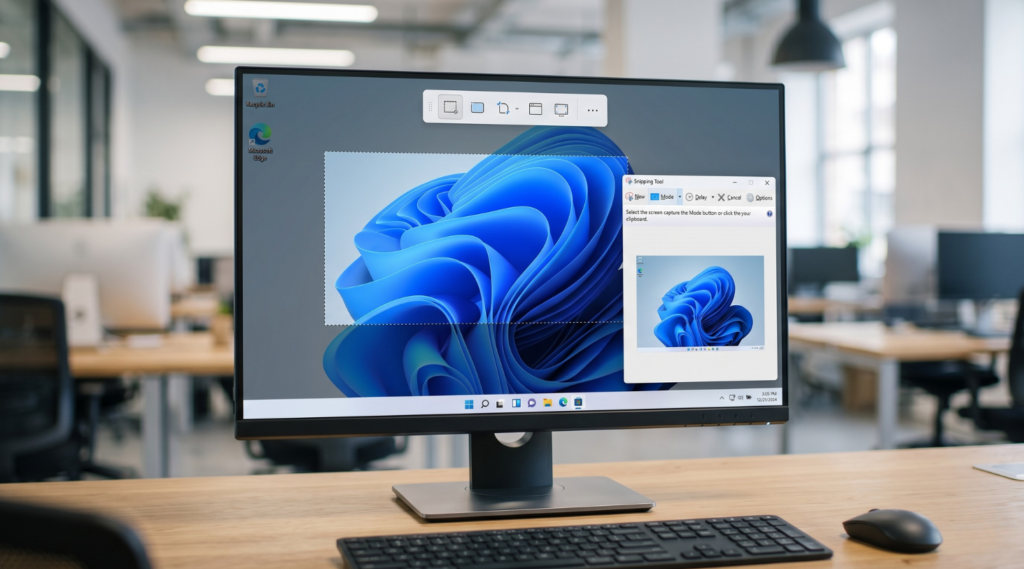
Windows screenshots help product managers organize this feedback visually. Instead of storing every comment as a separate text note, a PM can collect screenshots from similar screens, flows, or user moments. This makes it easier to see patterns: repeated friction in onboarding, unclear navigation, missing information before checkout, or too many steps before a key action.
For roadmap work, this matters because product teams rarely prioritize isolated opinions. They prioritize repeated signals. A group of screenshots from different users or sessions can show that the issue is not just one person’s preference, but a recurring problem in the product experience.
Visual Feedback Adds Context to Roadmap Prioritization
A product roadmap should not be built only from the loudest request or the longest list of ideas. PMs usually need to balance user impact, business value, technical effort, urgency, and strategic direction. Screenshots can support this process by giving visual feedback to the context behind a potential roadmap item.
For example, a roadmap idea like “improve onboarding” can feel too broad. But if the PM attaches several screenshots showing where users hesitate, skip steps, or miss important explanations, the roadmap item becomes more concrete. The team can see which part of onboarding needs work, how often it appears in feedback, and whether it connects to a larger activation or retention problem.
This does not mean that screenshots replace analytics, interviews, or product metrics. Metrics can show whether a problem deserves roadmap attention, while screenshots help explain what users actually see at the moment of friction. Together, they make roadmap decisions easier to connect with real product behavior.
Screenshots Help PMs Build Stakeholder Buy-In for Roadmap Items
Roadmap discussions often include people who do not work inside the product every day. Founders, executives, sales teams, customer success managers, or external stakeholders may understand the business goal, but not always the product friction behind a proposed change.
This is where selected screenshots can help a PM support the roadmap narrative. Instead of presenting a vague item like “improve setup experience,” the PM can show several screens where users hesitate, miss instructions, or repeat the same question. The screenshot does not act as the final argument, but it makes the user problem easier to see before the team discusses priority, effort, and timing.
This is especially useful for improvements that are not visually dramatic. A small label change, clearer empty state, better CTA placement, or shorter onboarding step may not look like a major roadmap item at first. But when screenshots show the same friction appearing across multiple user conversations, the improvement becomes easier to justify.
From Feedback Screenshots to Roadmap Items
A clean workflow helps PMs avoid turning every screenshot into a task. The goal is not to overload the roadmap with visual notes, but to use screenshots as evidence during product discovery and prioritization.
A practical flow can look like this:
| Feedback stage | How screenshots help | Roadmap value |
| Raw user feedback | Capture the exact screen connected to the comment | Keeps the original context visible |
| Pattern review | Group similar screenshots by screen, flow, or user goal | Helps identify repeated product friction |
| Prioritization | Compare screenshots with user impact and product metrics | Supports stronger roadmap decisions |
| Roadmap communication | Add selected visuals to roadmap notes or planning docs | Makes the reason behind a roadmap item easier to understand |
This approach keeps Windows screenshots connected to product thinking, not just documentation. For product managers, the strongest value is not the screenshot itself, but the way it helps connect user feedback with clearer roadmap priorities.
How Product Managers Map User Flows with a Windows Screen Capture App
Screenshot Sequences Show the Full User Journey
A single screenshot can explain one product moment, but user flows usually need more than one screen. Product managers often need to show how a user moves from the first action to the final result: opening a page, choosing an option, filling in details, confirming the action, and seeing the outcome.
This is where a screenshot sequence becomes useful. Instead of describing the flow only in text, a PM can collect several Windows desktop screenshots and place them in order. A Windows screen capture app helps turn these separate captures into a simple screen-by-screen view of the user journey, showing what the user sees at each step and where the experience may feel too long, unclear, or disconnected.
For example, if users abandon a setup process, the problem may not be visible on one screen. The friction may come from the number of steps, repeated fields, unclear progress, or a missing confirmation state. A screenshot sequence helps the product manager look at the entire path, not only one isolated interface issue.
User Flow Mapping Helps PMs Compare Expected and Actual Behavior
In product planning, there is often a difference between the flow the team designed and the flow users actually follow. A product manager may expect users to move through the product in a clean sequence, but real behavior can be less direct. Users may go back, skip steps, open the wrong section, or stop because the next action is not obvious.
User flow mapping with screenshots helps PMs compare these two views. The planned flow shows what the product team intended. The captured screens show what the user actually experiences. When these two paths do not match, the PM can identify where the product needs clearer navigation, better labels, shorter steps, or a stronger call to action.
This is especially useful for onboarding, checkout, account setup, dashboard configuration, booking flows, and SaaS trial activation. These flows are not always broken technically, but they can still lose users if the sequence feels confusing or asks for too much effort too early.
Screenshots Make UI Flow Discussions More Specific
A UI flow can be difficult to discuss if everyone imagines a different version of the screen. Designers may think about layout logic, developers may focus on states and conditions, and stakeholders may only care about the final business result. Screenshots give everyone the same visual reference for the conversation.
For example, instead of saying “the upgrade flow needs to be shorter,” a PM can show the actual screens users pass through before upgrading. The team can then discuss whether the pricing step appears too late, whether the benefits are clear enough, or whether the confirmation screen should include a stronger next action.
This keeps the discussion focused on the product experience rather than personal opinions. The screenshots show where the flow starts, where it slows down, and where the user needs more guidance.
Screen Capture Tools Can Help Document Dynamic Product Flows
Some product flows are hard to explain with static screenshots alone. Dropdown behavior, hover states, loading delays, drag-and-drop actions, multi-step modals, and transitions between screens may need short recording instead of separate images.
In these cases, screen capture Windows workflows can help PMs document the movement between steps. A short recording can show how the user opens a menu, selects an option, waits for a response, and reaches the next state. Static screenshots are still useful for final documentation, but recording can capture the interaction that happens between screens.
This is important for product managers because many flow problems appear during the transition, not on the final screen. A button may be visible, but the next step may load slowly. A modal may open, but the user may not understand whether the action was saved. A dropdown may work, but its options may be too hidden. Capturing the flow helps the team see these details more clearly.
A Simple Screenshot Flow Map Keeps Product Work Organized
For everyday product work, a screenshot-based flow map does not need to be complex. A PM can organize the flow in a simple sequence:
- Entry point: where the user starts.
- Main action: what the user is trying to do.
- Decision point: where the user chooses between options.
- Friction point: where confusion, delay, or hesitation appears.
- Final state: what the user sees after completing the action.
This structure helps product managers turn screenshots into a practical product workflow. It also separates user flow mapping from bug reporting: the goal is not only to show what is wrong, but to understand whether the full path helps users complete the task with less effort.
How to Build a Cleaner Screenshot Workflow with PixelTaken for Product Decisions
Capture Product Context While It Is Still Fresh
Product managers often collect feedback during user calls, internal reviews, support conversations, competitor analysis, or stakeholder discussions. The problem is that product context can disappear quickly if the PM only saves a short note like “checkout is confusing” or “dashboard needs improvement.”
With PixelTaken, a PM can capture the exact screen at the moment when the question appears, add a short visual note, and save the screenshot as part of the product discussion. This makes a Windows screenshot more useful because it keeps the product context attached to the original observation.
For example, instead of saving a vague note about a confusing pricing page, the PM can capture the page, mark the unclear pricing detail, and add a short comment about what users expected to see. This turns the screenshot into a small product artifact, not just another image file.
Built-In Microsoft Screen Capture Tools vs PixelTaken for Product Work
Built-in options like the Windows screen snipping tool can be enough when a product manager needs a quick static screenshot. Many users also look for a Microsoft screen capture tool when they mean native Windows options for capturing part of the screen, saving a simple image, or sharing a quick visual note with the team.
Teams sometimes start with a basic or free screen capture option when they only need occasional screenshots. But for product managers, the best choice is not only about price. A useful tool should fit the way PMs work with product feedback: capture the right screen, keep the context clear, and make the screenshot easy to discuss with designers, developers, or stakeholders.
PixelTaken can work well in the same product scenarios as native Windows tools, especially when screenshots are part of feature feedback, roadmap discussions, or user flow reviews. In this case, a Windows screen capture software workflow should stay simple: capture the screen, keep the product signal visible, and avoid turning a quick visual note into a heavy specification.
Screen recording in PixelTaken can also support product reviews when a static screenshot does not show enough context. In these cases, a short recording can complement screenshots without turning the workflow into a long video documentation process.
Use PixelTaken Annotations to Show One Clear Product Signal
Static screenshots are usually enough when a PM needs to explain one screen state. But when a product decision depends on timing, transition, or interaction between screens, PixelTaken’s recording feature can add useful context.
A short recording can support the screenshot workflow without replacing it. PMs can use video for dynamic behavior and keep screenshots for final notes, product briefs, roadmap documents, or design handoff.This keeps video screen capture Windows practical instead of excessive: record only when the product behavior cannot be understood from a static image.
Create Screenshot Sets for Product Reviews
Instead of saving screenshots one by one, PMs can group them into small review sets. This works especially well when a team needs to compare several UI states or discuss a product decision from different angles.
For example, a screenshot set can include:
| Product review case | What to capture with PixelTaken |
| Feature request review | Current screen, suggested placement, related user action |
| User flow review | Entry screen, friction point, final state |
| Roadmap discussion | Repeated feedback screens that support the same product theme |
| Design handoff | Current UI, annotated change area, expected state |
| Post-release review | Before/after screenshots of the updated experience |
This makes the workflow cleaner because screenshots are not stored randomly. They are grouped around a specific product decision, which makes them easier to reuse during planning, review, or handoff.
Use PixelTaken Recording Only When Screenshots Are Not Enough
Static screenshots are usually enough when a PM needs to explain one screen state. But some product issues happen between screens: a dropdown opens too slowly, a modal creates confusion, a loading state feels too long, or the next step is not obvious after the user clicks.
In these cases, PixelTaken’s screen recording feature can support the screenshot workflow. A short recording can show the movement, while screenshots can still be used later for documentation or roadmap notes.
This keeps video screen capture Windows practical instead of excessive. PMs do not need to record every product issue. Recording is most useful when the product decision depends on timing, transitions, interaction, or behavior that a static image cannot fully explain.
Keep the Workflow Simple Enough for Daily Product Work
A screenshot workflow should not become another heavy product process. For most PMs, the cleanest system is simple: capture the screen, mark the key area, add one short note, group related screenshots, and use recording only when the behavior cannot be explained with a static image.
This is where PixelTaken fits naturally into product management work. It helps PMs prepare clear visual context without switching between too many tools or turning every observation into a long specification. The result is a cleaner workflow for feature decisions, user flow reviews, roadmap discussions, and product feedback.
Common Windows Screenshot Mistakes in Product Management
Sending Screenshots Without a Clear Product Decision
One of the most common mistakes is sending a screenshot without explaining what decision it should support. A product manager may capture a screen, send it to a designer or developer, and assume the problem is obvious. But a screenshot without context can be interpreted in several ways.
A Windows screenshot should usually answer a clear product question: should this element be moved, renamed, removed, highlighted, or tested with users? Without that question, the team may spend time guessing whether the screenshot shows a bug, a UX issue, a feature idea, or just a reference.
A better approach is to attach a short note with every important screenshot. For example: “Users miss this action during onboarding,” “This pricing detail appears too late,” or “This empty state does not explain the next step.” The screenshot shows the interface, but the note explains the product meaning behind it.
Turning Every Screenshot into a Development Task
Not every screenshot should become a Jira ticket or backlog item. Some screenshots are discovery notes. Some are user feedback examples. Some are design references. Others are evidence for a future roadmap discussion.
If a PM turns every Windows desktop screenshot into a task too early, the product backlog can become noisy. The team may start fixing isolated UI details before understanding whether the issue is repeated, important, or connected to a larger product problem.
A cleaner workflow is to label screenshots by purpose before action is taken. This helps product managers avoid confusing raw feedback with ready-to-build requirements.
PixelTaken can support this separation before a screenshot enters a task tracker. A PM can add a short label or visual mark to show whether the image represents user feedback, UX friction, a placement question, or roadmap evidence.
Capturing Too Much of the Screen
A full Windows screen snapshot can be useful when the team needs to see the broader page layout. But in many product discussions, capturing too much information makes the screenshot harder to read.
If the important detail is one CTA, one form field, one empty state, or one confusing label, the screenshot should focus on that area. Otherwise, the viewer may not know where to look first, especially when the image is shared in Slack, Notion, Jira, Linear, or roadmap notes.
The better approach is to keep enough surrounding context to understand the screen, but remove anything that distracts from the product signal. PixelTaken can be useful here when a PM needs to capture only the relevant area instead of sending a full-screen image that makes the team search for the problem manually.
Using Annotations Without Visual Hierarchy
Annotations are helpful only when they guide attention. The mistake is not using arrows, boxes, or text notes, but using too many of them without a clear priority.
For product management, one strong annotation is often better than five weak ones. A PM should mark the main friction point, not every possible detail on the screen. If several issues appear on one screen, it may be better to create separate screenshots for separate decisions.
For example, one screenshot can focus on a hidden upgrade button. Another can focus on unclear pricing copy. A third can show a missing confirmation state. This keeps screenshot annotations easier to understand and easier to connect with the right product discussion.
Mixing User Feedback, Design Opinions, and Roadmap Ideas
Another mistake is mixing different types of product notes inside one screenshot thread. A user complaint, a designer’s suggestion, a stakeholder request, and a roadmap idea may all relate to the same screen, but they are not the same thing.
A product manager should keep these layers separate. User feedback explains what someone experienced. A design note explains a possible interface improvement. A roadmap idea explains why the change may deserve prioritization. When everything is written as one comment, the product decision becomes harder to make.
A screenshot can support all of these discussions, but the PM should clarify its role. Is this visual feedback from a user? Is it an internal product hypothesis? Is it a reference for future design work? That distinction helps the team avoid treating every visual note as an urgent feature request.
PixelTaken can support this habit when PMs need to add a short label like “user feedback,” “design idea,” or “roadmap evidence” directly to the screenshot before sharing it with the team.
Forgetting to Save Before-and-After Screenshots
Product managers often use screenshots before a change is made, but forget to capture the updated version after release. This is a missed opportunity.
Before-and-after screenshots help teams review whether the product actually became clearer. They are useful for design reviews, stakeholder updates, release notes, internal documentation, and future roadmap discussions. They also help PMs remember why a change was made in the first place.
For example, if the team improves an onboarding step, saving both versions makes it easier to compare the old flow with the new one. The goal is not just to document the UI, but to understand whether the product decision improved the user experience.
PixelTaken can help PMs keep before-and-after screenshots visually consistent by using similar annotations, colors, and short notes for both versions. This makes product changes easier to compare later without rebuilding the full context from memory.
A good screenshot workflow is not about collecting more images. It is about keeping the right visual context attached to the right product decision. When PMs avoid these common mistakes, Windows screenshots become more useful for feedback, planning, user flow reviews, and long-term product communication.