
Windows Recall Privacy: How to Take Private Screenshots on Windows
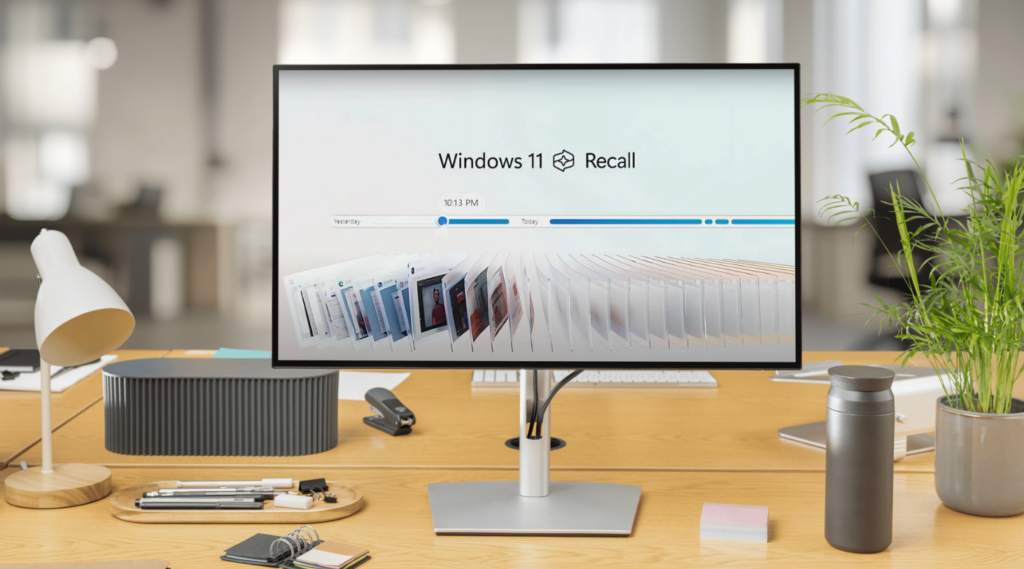
What Windows Recall Privacy Means in 2026
In 2026, Windows Recall privacy is not just a side topic in the Windows ecosystem. It is one of the main reasons people are asking how to take private screenshots on Windows while keeping more control over what their devices save over time. Microsoft describes Recall as a feature for Copilot+ PCs that helps users find things they have seen before by saving periodic screen snapshots and making them searchable later.
That sounds convenient, but privacy changes the conversation. A manual screenshot is something you take on purpose, at a specific moment, and only when you decide it is needed. Recall works differently. It is designed around saved snapshots over time, which means the real privacy question is no longer just “How do I take a private screenshot on Windows?” but also “What is Windows saving in the background, and how much control do I have over it?”
Microsoft says Recall is an opt-in experience, so saving snapshots is not enabled by default. Users have to allow it, and on managed commercial and education devices the feature is removed by default until IT admins allow it. Microsoft also says snapshots and related data are stored locally, encrypted on the device, and not shared withMicrosoftor third parties.
Even with those protections, the privacy issue is still practical, not theoretical. If your screen regularly shows email, passwords, internal documents, financial pages, support chats, or client dashboards, then the difference between automatic snapshots and manual screenshots becomes much more important. Microsoft includes controls for filtering apps, filtering websites in supported browsers, and filtering potentially sensitive information such as passwords and credit card details. Those settings matter, but they do not remove the bigger point: Recall is built to remember what was on your screen, while manual screenshots are built around intentional capture.
That is why this topic matters more in 2026 than it would have a few years ago. On modern Windows devices, privacy is no longer only about where a screenshot is saved. It is also about when a visual record is created, how often it is created, and whether the user stays fully in control of that moment. In that context, the choice between Recall and manual screenshots is really a choice between continuous memory and deliberate capture.
How Manual Screenshots with PixelTaken Give You More Control Over What Gets Captured
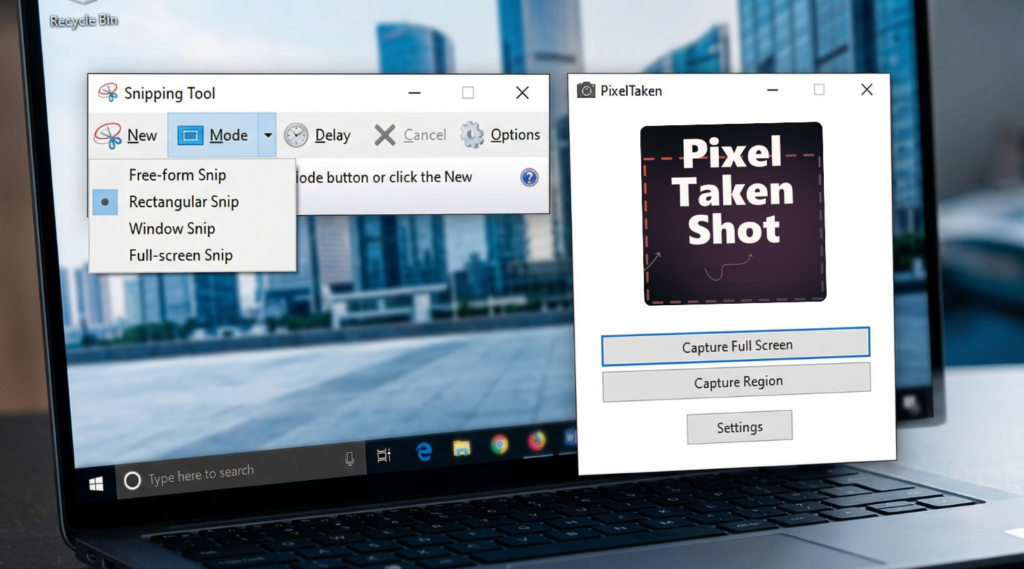
The most practical advantage of manual screenshots is not just privacy in theory, but better control over the exact area that gets saved. On a modern Windows desktop, that matters more than it used to. Many screens now combine several layers of information at once: browser tabs, account menus, side panels, notifications, chats, dashboards, and internal tools can all sit on screen at the same time. In that kind of environment, the difference between a useful screenshot and an overshared one often comes down to framing.
That is where manual capture becomes especially valuable. Windows Snipping Tool and PixelTaken are designed around the idea that you should be able to select only the part of the screen that matters. Instead of saving the whole desktop, you can focus on one message, one window, one setting, or one section of a page. For privacy-conscious users, that makes manual capture a more controlled way to create private screenshots on Windows.
In real workflows, people are often not looking for more ways to capture their screen. They are looking for ways to capture it more carefully. A full-screen image or even a broader Windows desktop screenshot can easily include things that were never meant to be part of the image, such as an open inbox, a visible profile photo, extra tabs, background apps, or account information in another corner of the display.
A more focused capture helps reduce that noise. If you only need one browser panel, one confirmation message, or one small part of a work dashboard, a manual screenshot lets you keep the record limited to that area. That makes the image easier to review, easier to share, and less likely to expose unrelated information. In privacy-sensitive workflows, that kind of precision is often more useful than convenience alone.
This is where PixelTaken fits naturally into the discussion. Like other manual screenshot tools on Windows, it supports the core habit that matters most here: capture only what you need, and leave everything else out of the frame. But PixelTaken is not only about taking the screenshot itself. It also includes useful tools that matter in the moment, such as arrows, text notes, and other visual annotations that help point to the exact detail you want to highlight. In practice, that makes the screenshot more focused, clearer to interpret, and easier to share without extra explanation. In an article about Recall, that distinction is important. The value of manual screenshots is not only that they are user-initiated. It is that they help users create a tighter, more intentional visual record from the very beginning.
Recall Settings, Filters, and Snapshot Controls You Should Know
Snapshot Saving and Opt-In Control
If the first privacy decision is whether you want Recall at all, the next one is how tightly you want to control it. This is where Windows Recall settings matter. Microsoft gives users a separate Recall & snapshots area in Settings, where snapshot saving, storage behavior, and filtering options can be managed more directly. That makes Recall less of an all-or-nothing feature and more of a configurable privacy layer on supported devices.
Microsoft says users must opt in to save snapshots, and it also provides options to pause or stop saving them later. For people comparing Recall vs screenshots, this matters because the privacy question is not only about what Recall can do, but also about how much ongoing capture you allow it to keep.
App and Website Filters
Another important part of Recall snapshots privacy is filtering. Microsoft allows users to exclude specific apps from Recall and, in supported browsers, exclude certain websites as well. It also says Recall is designed to reduce the capture of some sensitive information, such as passwords, national ID numbers, and credit card numbers, though Microsoft notes that sensitive-information filtering is not always perfect.
In practice, that means filters are useful, but they should be treated as a privacy aid, not a reason to stop thinking carefully about what appears on screen. If a page, tool, or account contains data you would not want preserved as part of ongoing screen history, filtering matters.
Storage, Deletion, and Retention
Storage and cleanup controls are just as important. Microsoft says users can manage how much disk space Recall uses, delete snapshots, and remove saved Recall data from the device. That is a meaningful part of how to stop Windows from taking snapshots in a broader sense, because privacy is not only about capture in the moment. It is also about retention over time.
A feature that can be paused, filtered, or cleaned up gives users more room to shape how much visual history stays available on the PC.
Why Manual Capture Still Feels Simpler
This is also the point where a manual workflow still has a clear advantage. Even with better Recall and snapshots settings, filtering, and storage controls, Recall remains a system for managing a history of snapshots. A manualWindows screenshotworkflow is simpler by design: nothing is captured until you choose to capture it.
That is why Recall controls are worth knowing, but also why many privacy-conscious users will still prefer a more deliberate screen capture on Windows approach for sensitive tasks.
When Private Screenshots Are a Better Choice Than Automatic Snapshots
Some moments on Windows do not need a visual history. They need a clean, limited record of one specific thing. That is where private screenshots are often a better choice than automatic snapshots. Instead of preserving broader screen activity, a manual Windows screenshot lets you save one exact state: one message, one payment confirmation, one settings panel, or one small section of a dashboard.
This matters most when the value of the image comes from precision rather than recallability. If the screenshot will be shared with a teammate, attached to a support request, saved for documentation, or kept for personal reference, a tighter frame usually makes the result more useful. It removes extra context, reduces clutter, and keeps attention on the one detail that actually matters.
| Situation | Manual screenshots are often better because | Recall can be less ideal because |
| Banking or payment pages | You can capture only the needed confirmation or detail | Ongoing snapshots may preserve more surrounding context than necessary |
| Account settings or profile pages | A tighter frame reduces the chance of exposing unrelated account data | Sensitive-information filtering helps, but Microsoft says it is not always perfect |
| Internal dashboards or client tools | You can save one panel without preserving the rest of the workspace | Automatic history may keep broader on-screen context over time |
| One-time messages, codes, or temporary states | You choose the exact moment and exact area to keep | A snapshot history is not always the cleanest record for short-lived details |
| Screens shared with support or teammates | The image is easier to review because it contains only the relevant part | Extra desktop context can make screenshots less focused for sharing |
In situations like these, the advantage of a manual screen capture on Windows is straightforward: it creates a smaller and more controlled record. Instead of saving a broader visual history, you keep one specific screen state that is easier to review, easier to share, and less likely to expose unrelated details. That is often the better privacy trade-off when accuracy matters more than automatic recall.
A Privacy Checklist for Taking Screenshots on Windows in the Recall Era
A good privacy workflow does not depend on doing something complicated every time you take a screenshot. It depends on a few consistent habits. In the Recall era, that means thinking not only about the image you save manually, but also about the broader screen history your Windows device may keep if Recall is enabled. Microsoft treats Recall as a separate experience with its own snapshot, filtering, deletion, and storage controls, which is why privacy now starts before you click capture.
Before You Capture
Before taking a screenshot, it helps to do a fast screen check. The goal is simple: make sure the screen shows only what the screenshot actually needs to show. On a busy Windows desktop, unrelated details can appear very easily, especially when multiple apps, panels, tabs, and notifications are open at once. A cleaner starting screen usually leads to a cleaner screenshot.
This is also why a smaller screen capture on Windows is often the safer choice. If you only need one message, one setting, one status update, or one confirmation state, there is no real benefit in saving more of the screen than that. The more tightly framed the image is, the easier it usually becomes to keep the screenshot relevant and private.
Before You Share
Once the screenshot is taken, the next step is not always to send it immediately. A quick review can catch details that are easy to miss in the moment, especially when the image is going to a colleague, support team, client, or external contact. Even a useful Windows screenshot can include extra context that adds no value for the person receiving it.
This is also the right stage to make the screenshot easier to read. If one field, one message, or one button matters most, a simple annotation can help direct attention without forcing the viewer to guess what they are supposed to notice. In practice, a clear screenshot is not the one that shows the most. It is the one that shows the right thing with the least confusion.
If Recall Is Enabled
If Recall is turned on, there is one more privacy habit worth keeping in mind: review your Windows Recall settings from time to time. Microsoft says users can control snapshot saving, filtering, and retention through Recall & snapshots settings, which means privacy is not only about manual capture, but also about what the device may continue to keep over time.
That does not mean every workflow needs constant adjustment. It just means Recall should be treated as part of the broader screenshot environment on Windows. If your device regularly shows private pages, internal tools, account details, or sensitive work material, it makes sense to check whether your current Recall setup still matches how you actually use the machine. Microsoft also notes that app and website filtering is available, along with controls for deleting snapshots and managing stored data.
Keep the Screenshot Purposeful
The easiest rule to remember is also the most useful one: keep the screenshot purposeful. A tighter image is usually easier to review, easier to share, and less likely to expose information that does not belong in the record. That is why manual screenshots still matter so much in 2026. They give users a simple way to create a record that is limited to the moment and the detail that actually matters.
In the Recall era, privacy is no longer only about whether a screenshot looks clean after capture. It is also about how intentionally that record is created, how much surrounding context it includes, and how much visual history remains on the device afterward. That is exactly why a deliberate screenshot workflow on Windows still has a clear place today.