
Modules/Screen Capture
Capture exactly the part of the screen you need
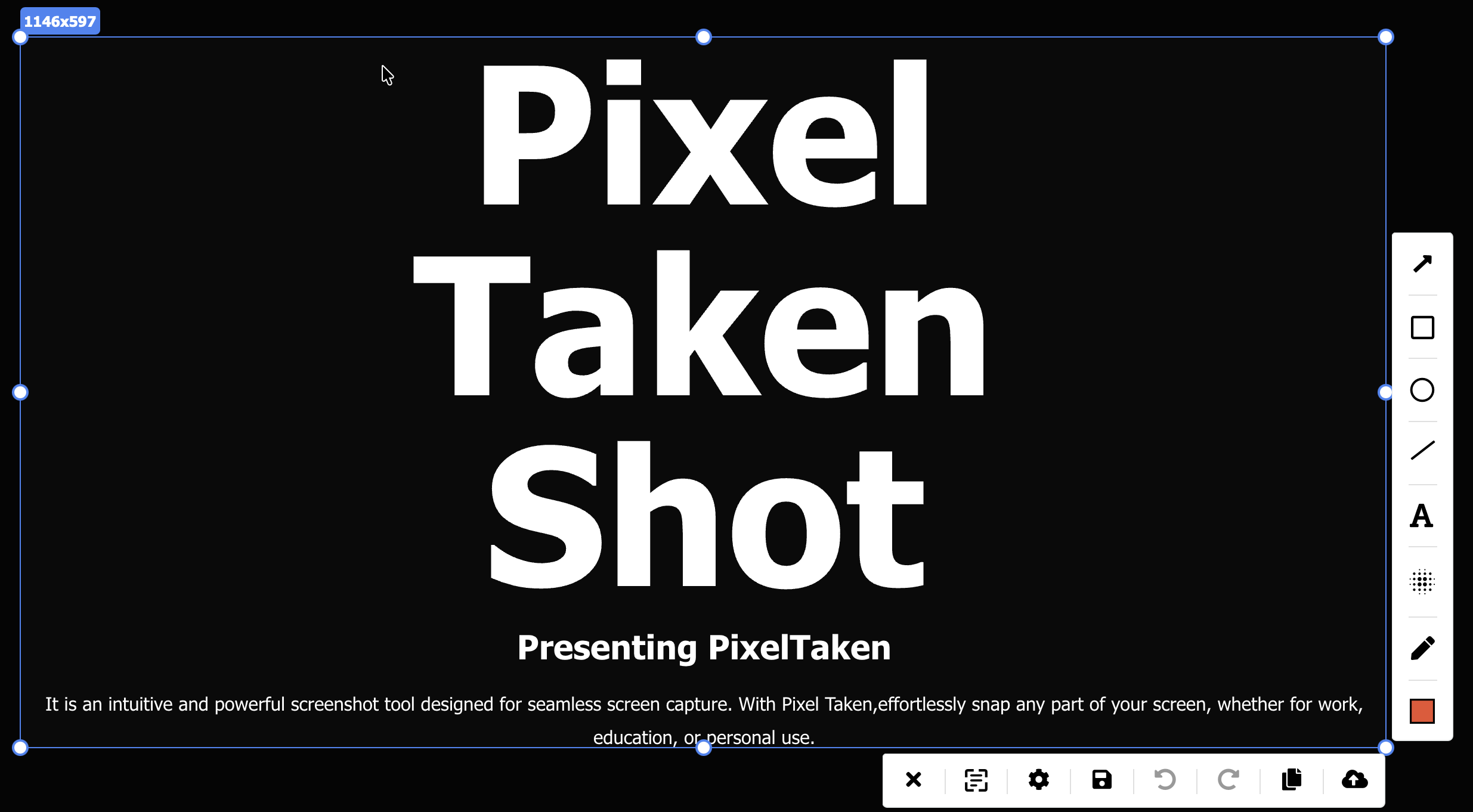
Press your hotkey and select an area or the full screen. Mark the shot up in the editor, blur what is private, copy the text out of it, then save or share.
From key press to a finished shot
Press the hotkey
Your capture hotkey opens the PixelTaken capture window. Drag over a region, or take the full screen.
Mark it up
Arrows, shapes, highlights and text in the editor that opens with the shot, and the blur tool for anything private.
Copy, save or share
Copy the shot, save it to disk or upload it for a link.
Mark up a screenshot so it explains itself
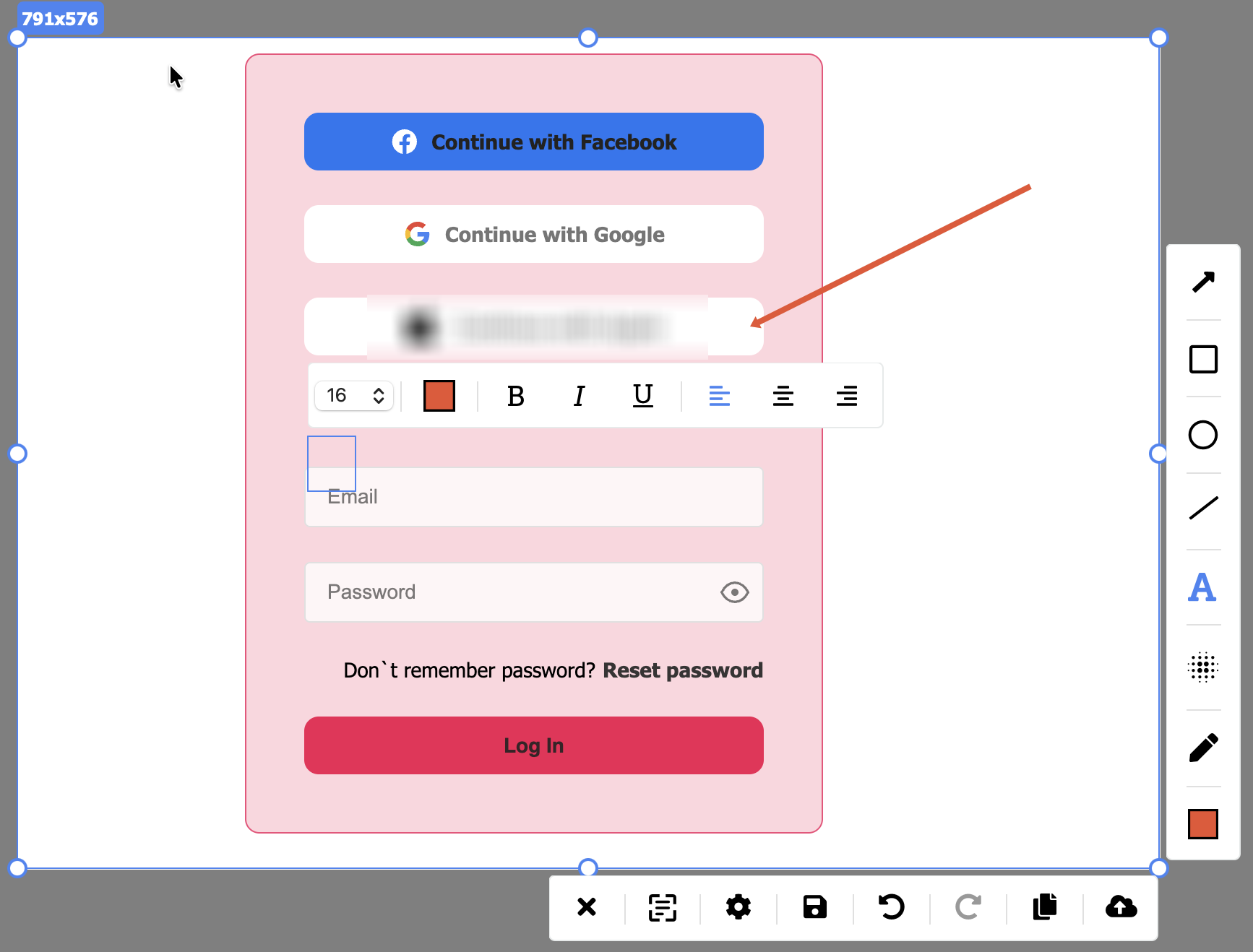
Arrows, shapes, freehand strokes, highlights and text in any color, right on top of your capture. Point at the bug, circle the number, add the note, then share.
- Arrows, rectangles, circles, lines, pen, highlighter and text
- Hold Shift for a straight line or a perfect circle; the mouse wheel sets the line width
- Font size, bold, italic, underline, color and alignment for every note
- Drag any shape, arrow or text box to a new spot, or undo the last change
Hide what should not leave your screen
Blur names, emails and anything private right in the editor, before the screenshot is saved or uploaded, and share only what you meant to.
- Pick the blur tool and cover what should stay hidden
- The blurred version is the one that is saved or uploaded
- For bug reports, guides and updates other people will see
Copy text straight out of a screenshot
PixelTaken reads the text inside your shot. Copy one line or all of it, instead of retyping what you see on the screen.
- Copy one line, or everything PixelTaken read in the shot
- Handy for error messages and text in pictures
- Paste it into a chat, a document, a search box or a ticket
Then just press your hotkey
A hotkey for each main action
Give each main action its own key or combination, and change it again whenever you like.
Exact sizes in pixels
Turn on pixel dimensions to see the width and height of the selection while you drag, for example 1569 × 535.
Saved where you want
Pick the default folder, or let PixelTaken ask where to save each shot.
Ready when you are
PixelTaken can start with your computer and wait in the background, with an optional notification each time a shot is copied or saved.
Screen Capture questions
Which key takes a screenshot?
The capture hotkey set in Settings, under Hot key: a single key or a combination like Shift + C. The Reset button there brings back the defaults.
Can I capture the whole screen, not just a region?
Yes. Drag over a region, or take the full screen.
Where are my screenshots saved?
In the folder set in Settings, under Screenshot. Change it to any folder, or turn on “Ask where to save each file after taking a screenshot” to choose every time.
Which tools does the editor have?
Arrows, rectangles, circles, lines, a pen, a highlighter and text, each in the color you pick, and a blur tool for hiding private details.
Is the original uploaded before I blur it?
No. Uploading is a separate step you take after editing, so the blurred version is the one that goes up.
What does Text Recognition do?
It reads the text inside your screenshot, so you can copy one line or all of it.
Do I need an account?
No. Capturing and annotating work without an account.
Is it free?
Yes. PixelTaken is free on Windows, macOS and Ubuntu.
Take your first screenshot
Download PixelTaken free and capture any part of your screen with one hotkey.