Windows 11 Snipping Tool vs Print Screen: What has Different in 2026?
Windows 11 Snipping Tool vs Print Screen in 2026: Why They’re No Longer the Same Thing
A few years ago, the difference was simple: Print Screen was a fast “grab a screenshot” button, while Snipping Tool was used when you needed to select a specific area. However, in 2026, the comparison between Windows 11 Snipping Tool and Print Screen is no longer a fair comparison of two similar shortcuts. These are now two distinct workflows: one is a quick capture trigger, and the other is a full-screen capture experience.
Print Screen in 2026: not just a “take a screenshot” key anymore
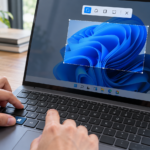
The biggest change is that in Windows 11, Print Screen can launch the Snipping Tool interface instead of instantly saving a screenshot as it did for many users in the past. That means pressing PrtSc often opens a capture UI where you choose an area or mode, rather than silently creating a file. This behaviour can be changed in Windows settings, but in practice, many people now experience Print Screen as a launcher, not a standalone tool.
So in modern Windows, Print Screen is often less about “take a picture now” and more about “opening the capture overlay in Windows 11.”
Snipping Tool in 2026: It evolved into a capture hub
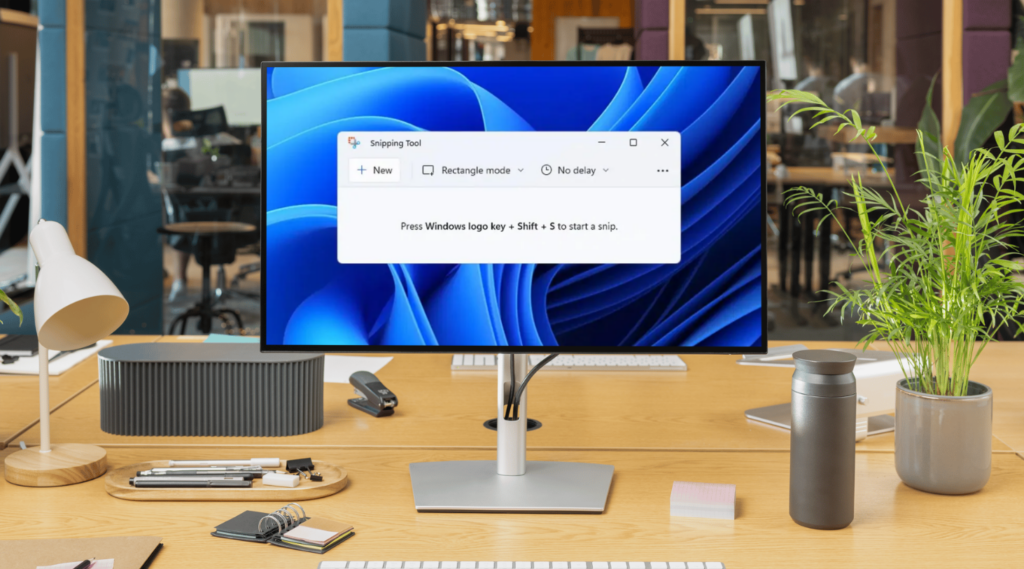
TheSnipping tool Windows 11experience has grown beyond basic cropping. In 2026, it’s closer to an all-in-one capture solution that includes multiple actions in one flow:
- Precise region screenshots (quick control over what you capture).
- Screen recording (yes, built-in video screen capture Windows functionality is now part of the tool).
- Text extraction (OCR) for copying text directly from images.
- Fast post-capture actions like saving, copying, and sharing.
Because of this, Snipping Tool is no longer “just another way to take a Windows screenshot.” It’s a mini workflow: capture, refine, and use the content immediately.
Why the difference matters in real work (not just in theory)
Here’s why Print Screen vs Snipping Tool feels very different in daily use:
- Print Screen is often faster, but can be less controlled (depends on your settings and what gets captured).
- Snipping Tool is more deliberate: you select the area, switch modes, and sometimes do quick post-actions.
So in 2026, they are not interchangeable anymore: Print Screen is a trigger, while Snipping Tool is a complete capture process.
Where PixelTaken fits (and why power users still switch)
Snipping Tool has improved a lot, but if screenshots are part of your job (QA, support, tutorials, content), the built-in flow can still feel slower than it should.
That’s where PixelTaken becomes a strong alternative for anyone who wants a faster and more repeatable workflow for a Windows desktop screenshot:
- One-click capture for faster daily usage.
- Efficient multi-monitor handling (especially when you don’t want “the wrong screen” captured).
- Clean saving/sharing flow built for productivity.
- A practical option when you need consistent screenshot results without extra steps.
In short, Windows 11 offers better built-in tools in 2026, but PixelTaken remains the choice for speed, routine work, and professional screenshot workflows.
What Print Screen Does Now: Shortcuts, Clipboard Behaviour, and the New Capture Flow (Windows 11, 2026)
In 2026, Print Screen isn’t a single action anymore. Depending on settings, it can behave like a quick capture shortcut, a clipboard-only snapshot, or a launcher for Snipping Tool’s capture overlay.
The “new” Print Screen flow: PrtSc often opens the capture UI
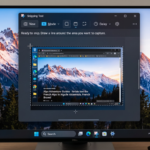
On many Windows 11 systems today, pressing PrtSc opens the Snipping Tool capture overlay (instead of instantly taking a full-screen screenshot). Microsoft and Windows guides confirm a setting that controls this behaviour:
Settings – Accessibility – Keyboard – “Use the Print Screen key to open screen capture” (On/Off)
What this means in real use:
- PrtSc = “start capture” (choose region/window/full screen);
- You’re no longer guaranteed a “silent” full-screen capture;
- Your screenshot experience now looks more like screen capture Windows 11 than classic Print Screen behaviour.
This is the #1 reason Print Screen and Snipping Tool no longer feel like the same thing.
The shortcuts that matter in 2026 (and what they actually do)
Here are the key screenshot shortcuts you’ll see in modern Windows workflows:
1) Win + Shift + S = open Snipping overlay for screenshots
This is still the most reliable shortcut for quick manual capture selection: region, window, or full screen. Microsoft documents it directly.
2) Win + PrtSc = auto-save a full screenshot (usually to Pictures/ Screenshots)
This is the “classic productivity shortcut” because it often saves instantly as a file: ideal for fastWindows screenshotlogging.
Small nuance: some users report inconsistent saving behaviour depending on system configuration (clipboard-only instead of saving), so if your folder is empty, check your settings and OneDrive/backup rules.
3) Alt + PrtSc = copy the active window to the clipboard
This is perfect when you need just one app window (not the whole desktop) for a quick screenshot workflow.
4) Win + Shift + R = Snipping Tool screen recording shortcut
Windows 11 now supports built-in recording directly through Snipping Tool (great for quick tutorials and video screen capture). Microsoft explicitly lists this shortcut.
Clipboard behaviour: why screenshots “disappear” if you don’t save them
This is the part that trips up many people in 2026:
- A lot of screenshot flows in Windows 11 first go to the clipboard.
- If you don’t paste or save, you may lose the capture (or forget where it went).
- Clipboard history exists, but you need it enabled and used intentionally.
Best practice for Windows 11 users:
If you capture something important, immediately either:
- click the preview to open/edit/save;
- or paste it into your target app;
- or use an auto-save method (like Win + PrtSc).
Also, Snipping Tool has improved auto-save behaviour settings over time, which helps reduce “clipboard-only” confusion.
Why does this matter? Print Screen is now a “capture entry point,” not a final result. In 2026, Print Screen often triggers capture, while Snipping Tool is the full workflow with modes and actions.
Snipping Tool Windows vs PixelTaken in 2026: What Each Captures Better (Scrolling, Delay, Video, Region Control)
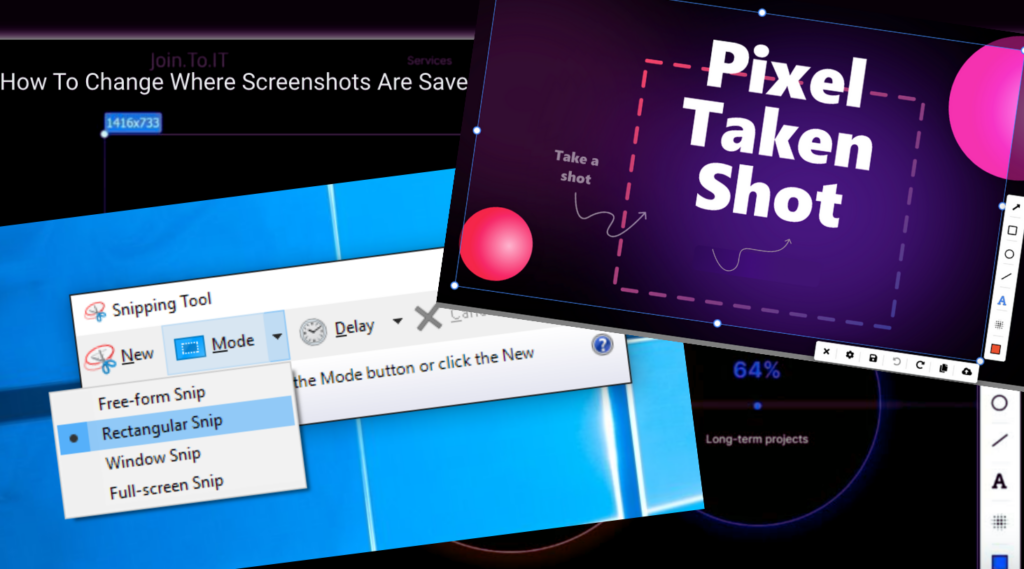
In 2026, Snipping Tool Windows 11 has become a much stronger built-in option, especially when you need precision and extra features like delay or quick recording.
But if screenshots are something you do every day for work, PixelTaken often wins because it focuses on speed, consistency, and repeatable output.
So instead of asking “Which one is better?”, the real question is: “What does Snipping Tool capture better?” and “What does PixelTaken do faster and more reliably?”
Region control: both can do it, but the workflow feels different
Snipping Tool is designed for careful selection. You open it, pick a mode, then choose your region or window. It’s clean, predictable, and great for detailed guides.
PixelTaken, on the other hand, is built for people who need to take a Windows screenshot fast, often many times per day without feeling like they’re constantly switching context or clicking through UI.
Snipping Tool Best for:
- careful region selection for documentation;
- one-off captures where you want full control;
- clean built-in flow inside Windows.
PixelTaken Best for:
- high-volume screenshot work;
- fast, repeatable capture with fewer steps;
- consistent results for a Windows desktop screenshot workflow.
Delay/timer capture: Snipping Tool still has the edge for menus
When you need screenshots of UI elements that disappear instantly, like dropdown menus, right-click context menus, and hover tooltips, the delay/timer feature is where Snipping Tool Windows 11 remains very strong. Windows documentation and usage guides still highlight the delay option as one of the best ways to capture temporary UI states.
Snipping Tool – Pros:
- excellent for capturing “disappearing” UI;
- ideal for support articles and step-by-step tutorials.
Snipping Tool – Cons:
- slower for routine screenshots;
- can feel like “too many steps” when speed matters.
PixelTaken – Pros:
- faster for everyday captures;
- smoother workflow when you don’t need timers.
PixelTaken – Cons:
- If your main use case is capturing tooltips/menus, the Snipping Tool may still be the easiest built-in choice.
Video screen capture (recording): Snipping Tool is built in and convenient
One of the biggest upgrades in 2026 is that Snipping Tool isn’t just for images anymore. It supports Windows video screen capture, and Windows even provides an official shortcut:
Win + Shift + R: start screen recording.
This is perfect for:
- bug reproduction clips;
- short client explanations;
- micro walkthroughs (30-60 seconds).
Snipping Tool – Pros:
- built-in recording (no install needed);
- quick for short demo videos.
Snipping Tool – Cons:
- not made for advanced editing;
- better for quick clips than “real production” videos.
PixelTaken: Where it wins
PixelTaken is more focused on still images and workflow speed. If your daily routine is mostly screen capture Windows 11 for guides, tasks, and documentation, PixelTaken’s strength is productivity and consistency, not full recording features.
Scrolling capture: neither is perfect, but this is where users want more
A common expectation in 2026 is “I want one click to capture the full page.”
But true scrolling screenshots are still not a reliable native feature in Snipping Tool for Windows 11, and users often depend on browser-based options or external tools.
Snipping Tool
- Great for what’s visible.
- Not ideal for long pages or long chats.
PixelTaken
- Great for fast, consistent capture.
- If you need true full-page scrolling screenshots, you’ll likely still use browser capture tools (or dedicated extensions).
Where Windows Screenshots Go: Saving Rules, Auto-Storage, and “Why I Can’t Find My Screenshot”
If you’ve ever taken a screenshot, then spent 2 minutes searching your PC thinking “Where did it go?”, you’re not alone. In 2026, Windows 11 screenshot behaviour depends on how you captured it, whether you use the Snipping Tool, and whether auto-save / cloud backup is enabled.
This section breaks down the real saving rules so you always know where your screenshot ends up.
The #1 reason you can’t find your screenshot: it never saved as a file
A lot of screenshot methods copy to the clipboard first, and only become a real file if you manually save (or use the right shortcut).
For example:
- Print Screen and Alt + Print Screen often put the image only on the clipboard (meaning: you must paste it into something like Paint, Word, Telegram, etc.).
- Win + Shift + S opens the snipping overlay and may also behave like “clipboard first,” depending on your Snipping Tool settings.
Quick check: If you can paste your screenshot into chat, it was on the clipboard, not necessarily saved.
The “classic” auto-save location: Pictures – Screenshots
If you use Win + Print Screen, Windows typically saves the screenshot automatically as a file into “Pictures – Screenshots“.
Tip: You can also open it fast by typing this into File Explorer:
- shell: Screenshots (a shortcut to the system screenshot folder);
- or open File Explorer – Pictures – Screenshots.
Snipping Tool in 2026: auto-save can make screenshots “vanish”
This is where most confusion happens in Windows 11.
Snipping Tool now has settings like:
- Automatically save original screenshots.
- “Ask to save edited screenshots” (behaviour changes what you see after capture).
So two users can do the same snip, but one gets a file automatically saved in Pictures/Screenshots, and the other gets clipboard-only + a notification preview, without a clear saved filename.
That’s why people ask: “I used snipping tool Windows 11. Where is my screenshot?”
If you want consistent behaviour, check Snipping Tool – Settings – Auto-save options.
OneDrive and cloud backup: your screenshots may be “somewhere else”
Another common 2026 situation:
You take a screenshot and later discover it inside a OneDrive-backed folder (or synced elsewhere), especially if your Pictures folder is included in OneDrive backup.
Microsoft notes that the old OneDrive “save screenshots automatically” toggle is no longer available the same way, and now screenshots get backed up based on folder backup rules (like backing up your Pictures folder).
What to do if screenshots appear in the cloud unexpectedly:
- Check whether your Pictures folder is being backed up/synced (OneDrive backup settings).
This is a huge reason screenshots “disappear” from where you expect them locally.
Another hidden screenshot folder: Xbox Game Bar captures
If you have ever used Game Bar shortcuts, screenshots can go into a different folder entirely. A common shortcut path is Videos – Captures (Game Bar), and you can jump to it using: shell: Captures.
Why this matters for productivity (and where PixelTaken helps)
Windows 11 is powerful, but it’s easy to lose time asking:
- “Did this save… or copy?”
- “Is it in Pictures/Screenshots or OneDrive?”
- “Was it Snipping Tool auto-save or clipboard only?”
- “Did Game Bar store it somewhere else?”
That’s exactly why tools like PixelTaken are useful in a modern screen capture Windows workflow: they reduce guessing and make saving more consistent, especially if you take a lot of screenshots for work (tutorials, QA, support, content).
In other words, Snipping Tool is getting smarter, but PixelTaken keeps the workflow predictable, so you don’t waste time hunting for files.
Which One Should You Use? The Best Option for Speed, Accuracy, and Single-Monitor Capture (PixelTaken Review)
At this point, Windows 11 Snipping Tool vs Print Screen isn’t about “which one is better overall.” In 2026, the best choice depends on your workflow: speed, accuracy, or single-monitor capture.
If you want the fastest “one action” capture: Print Screen
Use Print Screen when you want the quickest, lightest way to create a basic screenshot without overthinking it.
Best for:
- quick internal sharing (chat, email);
- instant “grab it now” moments;
- simple full-screen Windows screenshot is needed.
Trade-off:
- less control and predictability than dedicated tools;
- can be too “rough” for professional docs (you often capture more than you need).
If you want built-in precision without installing anything: Snipping Tool (Windows 11)
Choose Snipping Tool Windows 11 when you care about cleaner results and better control inside the Windows ecosystem.
Best for:
- controlled selection (region/window);
- structured capture flow when accuracy matters;
- quickly built-in screen capture Windows 11 features without extra apps.
Trade-off:
- not the quickest for repetitive everyday work;
- can feel slower when you take lots of screenshots daily.
PixelTaken review (2026): the best option for speed + single-monitor capture
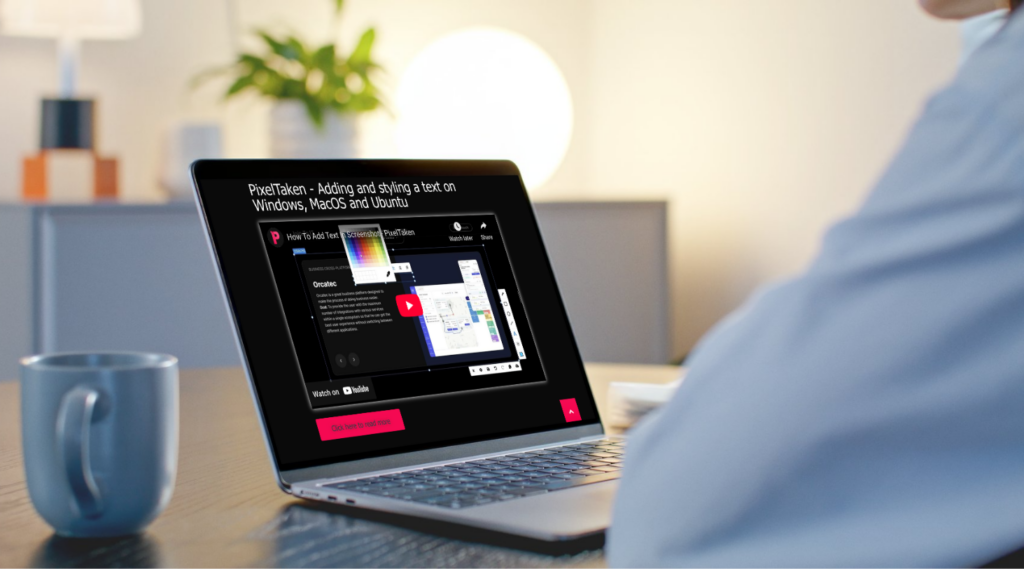
If you take screenshots as part of real work: QA testing, tutorials, client reports, or daily documentation, PixelTaken is often the most practical choice.
Why? Because the biggest productivity killer in Windows screenshot workflows is not “how to take the screenshot”; it’s getting the exact shot you want, fast, every time.
PixelTaken is designed for repeatable, no-drama capture, especially when you want a clean Windows desktop screenshot from one monitor only.
What PixelTaken does best?
- Single-monitor capture that feels intentional.
PixelTaken is a strong pick when your workflow depends on capturing only one display, cleanly, without extra steps or mistakes. - Speed that feels “pro”.
Instead of jumping between overlays, settings, or modes, PixelTaken is built around a faster capture rhythm, which matters when you take many screenshots per day. - Consistency in real work.
PixelTaken keeps the capture flow simple and predictable, which helps teams avoid repeated “Where did it go?” or “Why did it capture the wrong thing?” moments.
The “Pick the Right Tool” Table: Real-World Screenshot Scenarios
| What you need in 2026 | Best choice | Why it’s the best fit |
| Capture something instantly and paste it into chat/email | Print Screen | Fastest way to grab a quick Windows screen snapshot with minimal steps |
| Select a clean region or window for a tutorial | Snipping Tool (Windows 11) | Built-in video screen capture for Windows for quick recording without extra software |
| Take many screenshots daily (QA, support, product docs) | PixelTaken | Built for high-volume Windows screenshot workflows with consistent output |
| Single-monitor screenshot on a multi-monitor setup | PixelTaken | Designed to avoid “wrong screen” captures and keep Windows desktop screenshot results predictable |
| Capture a right-click menu, tooltip, or dropdown UI | Snipping Tool (Windows 11) | Delay/timer capture handles disappearing UI better than most shortcuts |
| Record a short clip to show a bug or workflow | Snipping Tool (Windows 11) | Built-in video screen capture for Windows for quick recording without extra software |
| You don’t want to install anything | Snipping Tool + Print Screen | Best native combo for basic screen capture Windows needs |
| You want the most consistent “save + share” workflow | PixelTaken | Strong built-in control for screen capture in Windows 11 and clean framing |
Quick comparison (2026): choose in 10 seconds
Choose Print Screen if you need:
- the quickest possible screen capture Windows shortcut;
- basic, fast Windows screenshot results;
- minimal UI and minimal thinking.
Choose Snipping Tool if you need:
- built-in precision tools for Windows 11;
- controlled region/window capture without extra apps;
- a standard Windows-native workflow.
Choose PixelTaken if you need:
- the fastest professional workflow for daily use;
- consistent results for Windows desktop screenshot;
- reliable single-monitor capture without friction.
Final recommendation (simple and honest):
If you take screenshots casually, Windows tools are totally fine.
But if screenshots are part of your productivity, PixelTaken is the upgrade that actually saves time.
It doesn’t replace Snipping Tool or Print Screen in every situation; it simply becomes your default when speed and clean results matter most.