How Teachers Capture Full Page Screenshot of Web Pages for Lesson Materials
How Teachers Usually Capture Web Pages?
A full page screenshot is most useful when the entire context matters, not just a single paragraph or a button. In teaching, that usually means materials students will reference later: instructions, reading pages, rubrics, and step-by-step guides. Unlike a quickWindows screenshot(or any simple Windows desktop screenshot) that captures only what’s visible, a full-page capture preserves the whole flow in one file, so students don’t miss details hidden “below the fold.”
Here are the most common teacher scenarios in 2026 where a full-page capture saves time and prevents back-and-forth questions:
- Assignment instructions in an LMS:
When the task includes multiple sections (requirements, deadlines, grading rules, links), one full-page capture prevents “I didn’t see that part” messages. - Rubrics and grading criteria:
Rubrics are often long and formatted as tables or sections. Capturing the entire page keeps the criteria consistent for everyone and makes it easy to reference during grading. - Reading materials and web articles:
A full-page screenshot turns a web resource into a stable “lesson artifact,” even if the site updates, adds paywalls, or changes layout later. - How-to pages and tutorials:
Students follow better when they can scroll through one continuous capture rather than switching between multiple cropped Windows screen snapshot images. - Proof of what was shown or posted:
In online teaching, a full-page screenshot is a quick way to document what instructions or resources were available at a specific time.
A simple rule helps decide when to use full-page vs. regular capture:
- Use a full page screenshot when students need the complete page structure (requirements, sections, tables, multiple steps).
- Use a standard screen capture Windows approach (a short crop) when you’re explaining one detail, like the exact setting to change or the line where a student made a mistake.
In practice, most teachers combine both: one full-page capture as the “source of truth” for lesson materials, plus a few small crops for highlighting the key parts students should focus on.
The Fastest Full Page Screenshot Methods in Browsers (Chrome/Edge/Firefox) for Teachers

When you need to capture an entire webpage for lesson materials, the fastest workflow in 2026 is usually inside the browser. Browser-based capture is consistent across devices and avoids extra UI clutter that often sneaks into a Windows screenshot when you’re rushing between classes.
Method A: Chrome (and Chromium) using DevTools “Capture full size screenshot”
This is the most reliable “no extra apps” option for a full page screenshot.
- Open the page.
- Right-click: Inspect (DevTools).
- Open the Command Menu (search “Run command”).
- Choose “Capture full size screenshot”.
- Save and rename it (example: lesson-rubric_full-page_2026.png).
Method B: Microsoft Edge Web Capture (fastest for daily teaching)
Edge’s built-in capture is great for a quick screenshot of a page, including a full-page option.
- Open Web capture.
- Choose “Capture full page” (or area).
- Save and share to your course materials.
Method C: Firefox built-in Screenshot tool (simple and cross-platform)
Firefox works well for mixed setups (school Windows PC + home Linux laptop).
- Open the page.
- Use the Screenshot tool.
- Choose “Save full page” (or visible area).
Method D: Extensions (only when pages are tricky)
Use an extension when the page is hard to capture (lazy loading, sticky headers, infinite scroll). This is also handy if you’re doing the same capture weekly for lessons.
Quick rule: full page vs. crop
- Use a full page screenshot when students need the entire structure (instructions, rubrics, long reading pages).
- Use a quick crop (screen capture Windows) when you’re highlighting one detail for feedback.
- On Linux/Ubuntu, the same idea applies: capture the full page in-browser, then use an Ubuntu screenshot crop only for small callouts.
Windows Classroom Workflow: Snipping Tool vs Full Page Capture (What to Use, When)
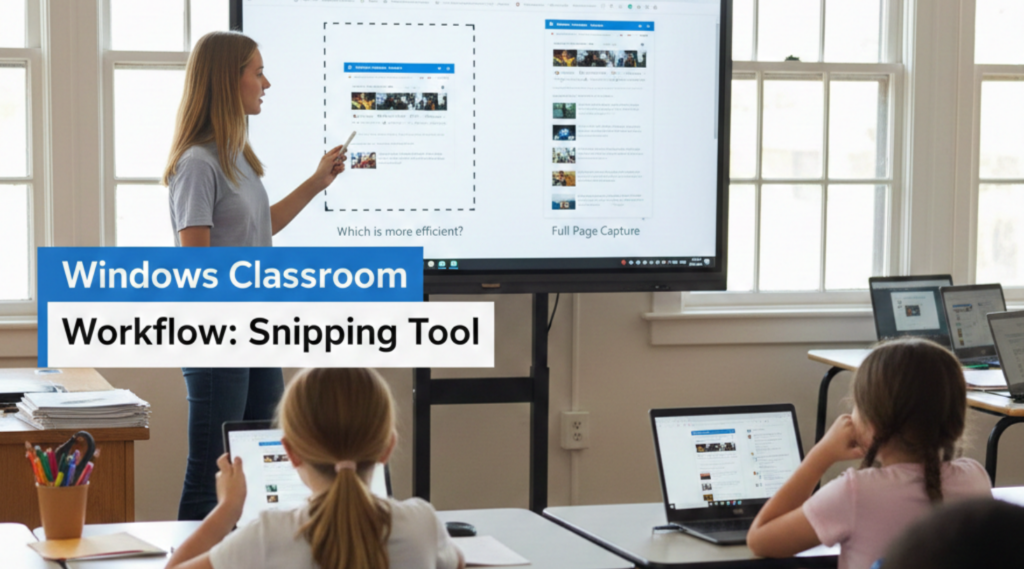
On Windows, teachers usually lose time not because they can’t take a screenshot, but because they choose the wrong capture type for the task. A browser full-page capture is perfect when you need to capture an entire webpage as a lesson artefact, while theSnipping tool in Windowsis better for “highlighting one thing and explaining it fast.”
A simple rule:
- Full page capture = documentation (instructions, rubrics, reading pages).
- Snipping Tool = communication (feedback, callouts, quick fixes).
When to use full page capture (browser)
Use full-page capture when students need the entire structure of a page:
- LMS assignment pages with multiple sections (requirements + deadlines + links).
- Rubrics that run long (tables, criteria lists).
- In “How-to” articles, students must follow step-by-step instructions.
This prevents confusion later and keeps your lesson materials stable even if the page changes.
When to use Snipping Tool on Windows (fast feedback)
Use Snipping Tool Windows 11 (or Windows 10) when you only need to show one detail:
- Pointing to the exact button a student missed.
- Marking the line where a mistake happens.
- Showing a setting toggle in an app or browser.
This kind of screen capture is best when you need a fast visual explanation, not a long document. It’s also easy to paste into an email, chat, or an LMS comment.
Where PixelTaken fits (the “make it classroom-ready” step)
Whether it’s a full-page or a quick crop, the “ready to share” step usually means three edits:
- tighter cropping (remove distractions);
- quick highlight/arrow for attention;
- blur sensitive data (names, grades, IDs).
With PixelTaken, teachers can capture what they’ll share and finish those edits during the PixelTaken capture flow: no extra steps, just a clean classroom-ready image.
A simple 30-second workflow that teachers can repeat
- Capture the page (browser full-page) or grab a small crop (Snipping Tool).
- If you need edits (crop/mark/blur), you can capture that area directly in PixelTaken and finalise it before saving.
- Save with a consistent name (e.g., Class10_Rubric_Week3.png).
- Share in your LMS/Docs/Email.
Ubuntu & Linux: Full Page Screenshot Without Extra Noise (Teacher-Friendly)
On Ubuntu/Linux, the tricky part of capturing lesson pages isn’t the screenshot itself; it’s that many pages don’t render the same way when you “print” them into an image. Fonts scale differently, sticky headers can repeat, and long pages can cut off content if the page is still loading while you capture.
A teacher-friendly workflow in 2026 is about avoiding these Linux-specific capture failures so you don’t waste time redoing materials five minutes before class.
Fix #1: Prevent missing content on long lesson pages (lazy loading)
Some LMS pages and modern websites load content only when you scroll. Before capturing a full page screenshot, do a fast “scroll pass” to the bottom and back up. This forces sections to load so your capture doesn’t end mid-page.
Natural keyword fit: if you later need a cropped proof instead, a quick Ubuntu screenshot is faster than rebuilding the whole capture.
Fix #2: Stop repeated headers, cookie banners, and chat widgets
On Linux browsers, sticky UI elements sometimes get captured multiple times in long screenshots. For clean lesson materials:
- Temporarily hide cookie banners and chat widgets (often a single “X” or “Accept”).
- Use reader view when available for article-style pages.
- If the header is the problem, switch to a simpler page layout (print-friendly / reader).
This keeps the final image “classroom-ready” and avoids confusing students with repeated toolbars.
Fix #3: Make text readable across different Linux display scaling
Linux setups vary a lot (especially at home vs school). If your display scaling is 125-150%, a full-page image can end up with tiny text when students open it on phones.
Quick fix:
- Zoom the page to a readable level (e.g., 110-125%) before you capture.
- Keep the browser window wide enough so the page doesn’t reflow into narrow columns.
This is the difference between a usable handout and a screenshot students can’t read.
Fix #4: Save lesson pages in a format students can open easily
Teachers often share captures in chat/LMS, where images get compressed. If a long capture becomes blurry:
- export to PDF (better for long pages and text);
- or split the page into 2 logical parts (top “instructions” + bottom “rubric”).
You can still keep your quick-crop workflow for small callouts using an Ubuntu Snipping tool when you only need one section.
Where PixelTaken helps (keep it minimal and practical)
After the capture, PixelTaken is useful for the final polish step:
- Crop off repeated headers/footers that slipped in.
- Highlight the exact section students should focus on.
- Blur anything sensitive before uploading to the LMS.
When a Full Page Screenshot Isn’t Enough: Evidence Packs, PDFs, and Video Capture for Lessons
A full page screenshot is great for “freezing” a webpage, but teaching in 2026 has plenty of situations where a single long image is not the best artefact, especially when pages are interactive, content changes while scrolling, or students need something they can search and print.
The goal here is speed and clarity: choose the format that reduces follow-up questions and works well inside an LMS.
Video capture (when motion matters)
When a page is interactive (menus, hover states, animations), content loads while scrolling, or you need to show “what happened” step-by-step, a short recording often beats a long screenshot. Keep it teacher-fast: record 10-30 seconds, narrate the one action you want students to copy, and use a quick screenshot (captured in PixelTaken) only for blurring names/IDs before sharing.
Tools & Workflows for Teacher Screenshots
| Use case | Browser full-page capture | Windows Snipping Tool | PixelTaken |
| Full lesson page (article, LMS, wiki) | Capture full page: export or print to PDF for distribution | Only visible screen (can’t capture the full page) | Capture a key section or final shareable frame in PixelTaken if you need blur/mark before sharing |
| Single example or exercise | Scroll & capture page area | Capture a specific region | Capture directly in PixelTaken and crop tighter, add arrows/highlights, blur sensitive data before saving |
| Step-by-step instructions (slides/doc) | Capture page by page | Capture each step | Capture each step in PixelTaken so numbering, arrows, and blur are applied during capture |
| Error message / UI issue | Hard to isolate precisely | Quick area capture | Best fit: capture the exact UI state in PixelTaken, blur IDs/emails, save immediately |
| Evidence pack (3-8 screenshots) | Overkill for small details | Fast but no built-in polish | Primary workflow: capture every frame in PixelTaken so all edits happen before saving |
| Sensitive student data is visible | Requires an external editor after capture | Requires an external editor | Capture in PixelTaken and blur names, grades, and IDs before the image ever leaves the tool |
| Printable worksheet or PDF | Print / Export to PDF (best for A4/Letter, multi-page) | Screenshots only (PNG/JPG), not a real printable PDF workflow | PixelTaken does not edit PDFs; it only captures and cleans screenshots |
| Quick share to email / LMS | Export + attach | Capture + attach | Capture + edit in one step in PixelTaken, then share |
| Short video (interactive page / “show what happened”) | Built-in screen recording (good for narration and full context) | Basic screen recording (limited controls) | Record fullscreen, window, or area video in PixelTaken; include cursor, system sound, mic, or webcam, then save or upload instantly |
What “evidence packs” are (and why they work in teaching)
An evidence pack is just a small, ordered set of screenshots that tells a story quickly, perfect for:
- explaining how to submit work;
- documenting what instructions were posted;
- reporting an LMS issue to IT;
- or clarifying a grading dispute.
To keep it teacher-fast, stick to 3 rules:
- Capture only the steps that matter (don’t screenshot everything).
- Rename files in order: 01_, 02_, 03_ (students and admins love this).
- Use PixelTaken to add simple numbering/highlights and blur personal info before uploading.
Windows vs. Linux/Ubuntu note (keep it simple)
- On Windows, a quick screen capture crop is often the fastest way to build an evidence pack.
- On Ubuntu/Linux, you can still build the same pack, just keep each capture focused and consistent (and do the same polishing step in PixelTaken).
Conclusion
A full page screenshot is one of the fastest ways to turn a webpage into a “lesson artefact” that students can follow without missing details. In 2026, the most efficient teaching workflow is simple: capture the page in your browser when you need the full context, then switch to quick, focused captures when you only need to explain one step.
To keep your materials clear and safe to share, standardise your process: save files with consistent names, prefer readable formats (PDF when the page is long or text-heavy), and use short evidence packs or brief recordings when a single image can’t show what happened. And before you post anything to an LMS, take 10 seconds to clean it up, crop distractions, highlight what matters, and blur sensitive data.
PixelTaken is a complete capture tool for lessons: take the screenshot (or a short recording when needed) and make it classroom-ready during capture with built-in crop, highlights, and blur, then save or share immediately.